
Start a The Isle EVRIMA performance check by naming the symptom. Consistently low FPS, occasional frame-time spikes and players rubberbanding across a smooth scene are different observations. A useful settings change is one you can compare under similar conditions and undo if it does not help.
This guide gives you a practical comparison workflow for graphics, drivers and background activity. Menu names and available options vary with the game build and hardware. Its three AI-generated illustrations are conceptual artwork, not game screenshots, measured benchmarks or proof of a particular FPS improvement.
Low FPS, stuttering and server lag: what are you seeing?
Low FPS means relatively few frames are displayed each second. Camera movement may look consistently less fluid. Stuttering describes uneven delivery: a scene can feel interrupted even when its average FPS looks acceptable. Frame time measures how long a frame takes, so occasional long frames are worth noting alongside the average.
Network or server symptoms can look different. If camera movement stays smooth while other animals jump back, actions arrive late or movement is corrected, record that separately. These are diagnostic clues, not proof of the cause. Client stalls, connection problems and server behaviour can overlap.
| Observation | First comparison | What it can tell you |
|---|---|---|
| The whole scene is consistently sluggish | Same view with a lower rendering workload | Whether graphics changes make a useful difference |
| Brief pauses interrupt otherwise fluid movement | Frame-time behaviour and when each pause occurs | Whether the interruption repeats at a place or event |
| Other animals snap while the camera is smooth | Connection indicators and another comparable server session | Whether the symptom follows that session or connection |
| A slowdown begins after several minutes | Background activity, temperatures and power state | Whether the system's conditions changed during play |
The developers' official announcements discuss server stability, engine work and ongoing bug testing. A server-side issue can require a game or server fix. Repeatedly lowering textures is not a meaningful response when the rendering observation remains unchanged.
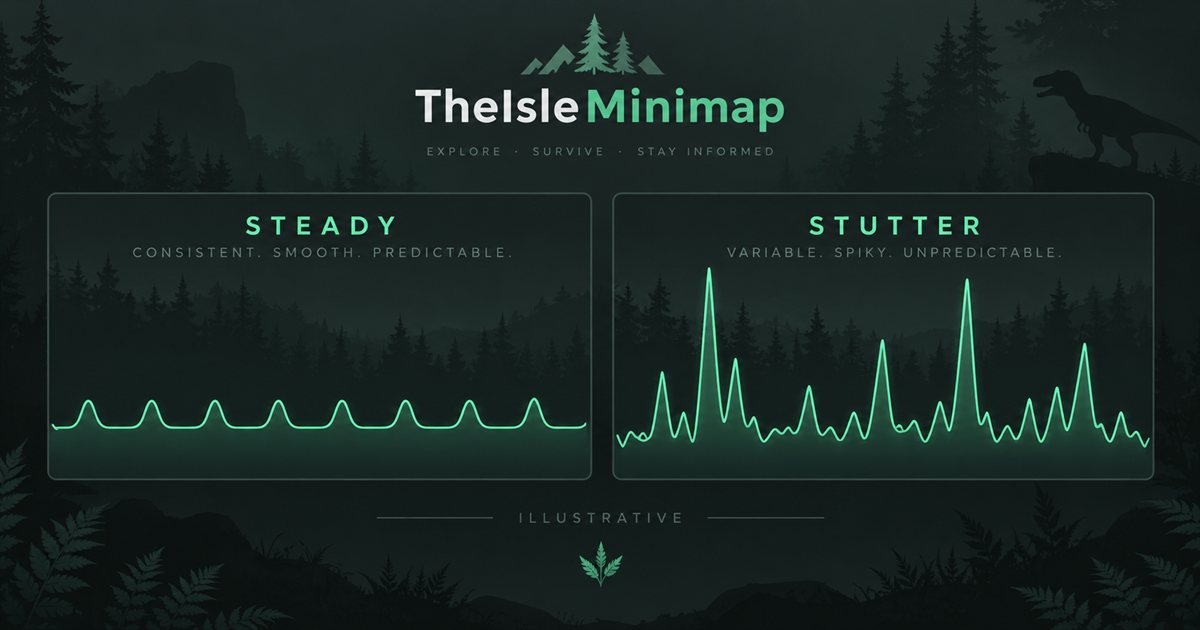
Record your setup before changing anything
Note the game branch and build, GPU, CPU, RAM, display resolution and current graphics preset. Take a screenshot of the settings you want to compare. Include the window mode, scaling option and frame limit where present. This gives you a reliable way back to your existing setup.
Choose a short repeatable view or route where you can pause without interfering with other players. Include some camera movement and an area that normally shows the problem. Avoid comparing an empty forest at dawn with a crowded clearing during a storm and calling the difference a settings result.
Use the same trusted monitoring method for both runs. Record typical FPS, obvious stalls and frame-time information if your tool provides it. Also note server population and weather when they differ. You do not need an elaborate spreadsheet: a few consistent observations are more useful than a single maximum FPS number.
Compare resolution or upscaling first when rendering looks expensive
If the whole scene is consistently slow, a controlled rendering-resolution comparison is a useful first experiment. Change one available resolution or scaling option, apply it, follow any restart prompt, and repeat the same view. Keep the other settings stable.
If the game exposes a supported upscaler for your hardware, compare its available quality modes. NVIDIA's DLSS documentation explains that Super Resolution reconstructs higher-resolution output from a lower-resolution input. That can change the rendering workload, but the result depends on the game, hardware and selected mode.
This does not establish that every EVRIMA build exposes every DLSS, frame-generation or vendor feature. Select only the options actually present and supported in your setup. Frame generation and upscaling are different technologies; do not treat their displayed frame counts as interchangeable evidence about input responsiveness.
Inspect the image as well as the numbers. Compare foliage movement, distant shapes and the coordinate text you use during navigation. A smoother result that makes important details too difficult to read may not be the best practical setting for you.
Compare lighting, shadows and detail in separate passes
Use the graphics controls visible in your current build. A reasonable comparison order is rendering scale, then a lighting or shadow quality control, then effects or scene detail. This is an editorial starting sequence, not a claim that the same option is the largest cost on every PC.
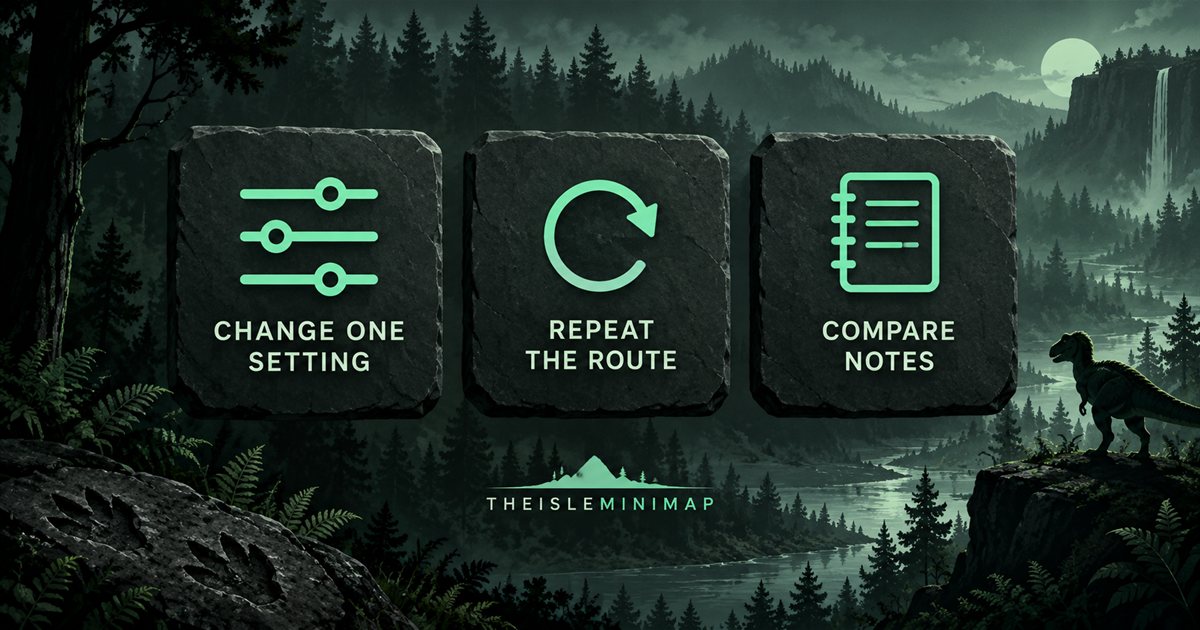
Lower one setting by a step and repeat the baseline route. If it helps, note the visual tradeoff and keep it temporarily. If it does not change the symptom, restore it before the next comparison. Several simultaneous changes can hide which adjustment was responsible.
Consider texture quality when the scene's detail, memory use or texture loading appears involved. It is not a universal solution to every slowdown. Monitor what your system reports and compare the same area rather than assuming the lowest possible setting always produces the best experience.
Preserve visibility that helps you play. Check the new result during movement, not just while stationary in a menu. Readability, stable delivery and usable controls are a better target than a preset name copied from a machine with different hardware.
Frame limits, sync and your display
A frame limit can help you compare behaviour at a more consistent target. Choose a value the system can usually sustain in the scene you are testing, then observe pacing and responsiveness. A cap does not make a demanding scene render faster, and there is no universal number prescribed here.
Check the display refresh rate and the sync options already configured for the game. If you compare VSync or a supported variable-refresh setup, change one control at a time and watch for tearing, pacing and response differences. Keep notes so you can restore a familiar result.
Also record window mode. If you use TheIsleMinimap's overlay, the supported game arrangement is windowed or borderless. Compare like with like; changing mode, resolution and scaling together makes the result harder to interpret.
Check background activity and power conditions
Open Task Manager during a quiet troubleshooting session and look for an unexpected workload. A download, recording session, many active browser tabs or another demanding application can change the conditions of your comparison. Pause only work you understand and are willing to interrupt.
On a laptop, note whether it is plugged in and which normal power mode is active. Follow the device manufacturer's guidance for sustained gaming and ventilation. If the slowdown develops over time, record temperature and clock information from a trusted tool rather than immediately buying new hardware.
Avoid disabling security software, stopping unfamiliar services or applying an entire bundle of registry tweaks. Those changes create additional variables and can cause problems unrelated to the original symptom. Prefer ordinary supported controls whose effect you can compare.
Game updates, drivers and file verification
Check the installed game build and read its official patch notes. Public EVRIMA and a testing branch may differ; a test-branch clip is not proof that the same setting or fix exists in your installed version. Include that distinction in any troubleshooting report.
For a GPU driver change, use the GPU or device manufacturer's official source and note the version before and after. Do it separately from graphics tuning. A recent driver is not a guaranteed cure, and mixing it into the same test as several settings changes makes the outcome ambiguous.
If missing content, crashes or a damaged installation are suspected, Steam documents Verify Integrity of Game Files. In the Library, open the game's Properties, choose Installed Files and run verification. Allow Steam to complete any repairs before testing again.
Verification is an installation check, not a promised FPS upgrade. Do not delete your Saved or configuration folders as a routine performance step. Keep personalised controls and settings intact while you diagnose the symptom.
TheIsleMinimap settings and game performance are separate
The companion provides reference layers, coordinate workflows and overlay controls. It does not tune the game's graphics, fix server lag or guarantee a frame-rate increase. Its system requirements are separate from the game's requirements: the companion supports Windows 11 and Windows 10 on 64-bit systems.
Choose the map size and layer visibility that make navigation readable. Opacity is a visibility preference, not a promised FPS optimisation. If you suspect an interaction, compare the same scene with the companion running and normally closed, then restore your preferred arrangement.
Optional screen reading and clipboard coordinate updates are separate workflows. If you compare them, record the mode and use the same scene. After changing game resolution or UI scaling, recheck the approved coordinate capture area as described in the coordinate reading guide.
What to include in an unresolved performance report
Write the symptom, game branch and build, hardware, driver version, resolution, settings and when it occurs. Add the comparison you tried and what changed. Separate camera stutter from delayed multiplayer movement, and remove private account or squad information from screenshots.
For a companion-specific issue, use an Account Portal support ticket with your app version and the relevant status or diagnostic result. For a game issue, follow the game developer's current reporting route. Clear reproduction details are more useful than describing every problem as lag.
Performance questions
Is there one best EVRIMA preset?
No single preset can account for every PC, display, scene and build. Compare the options on your own setup.
Will lower settings fix rubberbanding?
They may change rendering, but network or server behaviour needs its own investigation.
Do these illustrations show measured results?
No. They teach the comparison process; this article does not report a gameplay benchmark.