

Explore 01
Fast optional screen reading
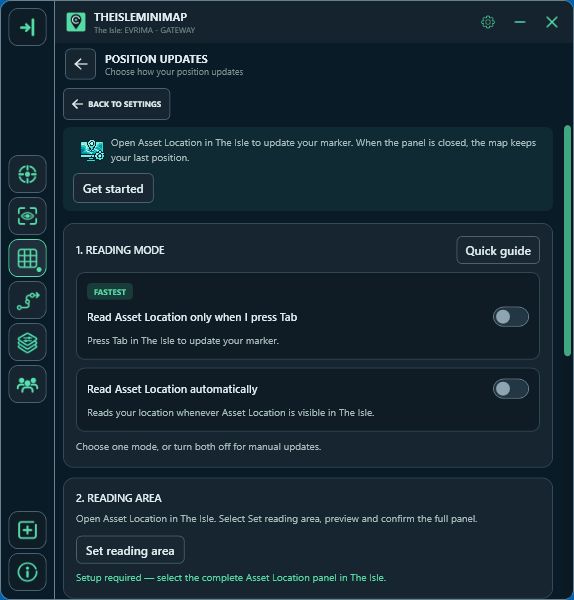
- Choose a reading modeIn Settings > Position Updates, choose automatic reading or key-triggered reading (Tab by default) and approve screen-reading permission. Turning either mode on switches the other off.
- Confirm the areaShow Asset Location in the game first, then click Find automatically. Keep it visible during capture, review the preview and confirm the area. Both modes use the same saved area.
- Read your locationKeep The Isle in the foreground. For automatic reading, keep Asset Location visible. For key-triggered reading, press your assigned Asset Location key (Tab by default). Use Change key if your game binding is different. Your marker updates after your coordinates are confirmed.
Open Settings > Position Updates and choose one reading mode. Read Asset Location automatically checks your saved area while the panel is visible. Key-triggered reading starts a request after pressing your assigned Asset Location key and is marked FASTEST in the app. Tab is the default; use Change key to match your game binding. The assigned key also works while holding Shift to sprint or Ctrl to crouch. Turning either mode on switches the other off; both can be off for manual clipboard updates. Both modes use the same confirmed reading area. If the game window, display resolution or scaling changes, select the area again when requested. The app checks the visible coordinates before updating your marker.
The captured screen area is processed on your computer. It is not uploaded to the website or shared with a squad. The Current Position panel shows whether screen reading or clipboard capture supplied the latest update and how recently it arrived.
Key-triggered reading is the fastest mode. It starts when you press your assigned Asset Location key while The Isle is active, including while holding Shift to sprint or Ctrl to crouch. Enabling it requires an administrator restart and approval of the Windows permission prompt.

Explore 02
English support and setup help
After first activation, Get started guides you through app size, opacity, mouse interaction, an Earplugs shortcut and position updates. Reopen it from Settings > Position Updates > Get started, or open Quick guide for short instructions and troubleshooting.
When you choose key-triggered or automatic reading, Get started checks for English recognition support. If it is missing, use Install English OCR support and follow the Windows prompts. Asset Location uses English labels; installing recognition support does not change your Windows display language. Keep the app open until installation finishes.
Explore 03
Manual clipboard monitoring
- Open Asset LocationUse your game binding to show the Asset Location coordinates (Tab by default).
- Click the coordinatesCopy the location using the game’s own coordinate control.
- See your marker updateThe app recognizes the copied position without a manual paste.
The Isle lets you click the displayed Asset Location coordinates to copy them. With clipboard monitoring enabled, that click is enough: TheIsleMinimap recognizes the coordinate text and updates your map marker without requiring a separate paste action.
This is useful when you want direct control over every update or do not want automatic reading enabled.

Explore 04
Position sharing remains optional
Local capture
Captured screen content is processed on your PC and is not uploaded.

Optional squad sharing
Joining a squad shares your latest position. Your complete movement trail stays local.
Your local marker and movement trail work without joining a squad. If you join a private squad, only your latest shared position, selected marker color and optional short name are visible to the other members. The complete movement trail remains local.
The app never reads game memory, modifies the game process or inspects network packets. Review the full privacy and data explanation for the exact data boundaries.