
Built-in Gateway map
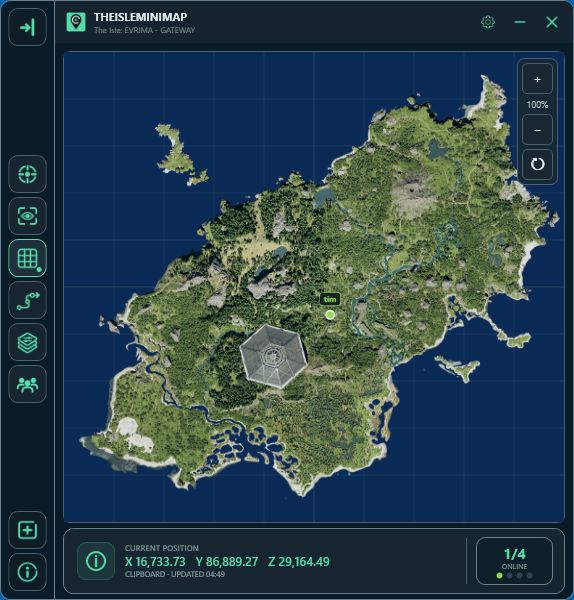
Keep the supported EVRIMA Gateway map in a dedicated Windows overlay, on official and community Gateway servers.
The complete app toolkit
Explore everything in TheIsleMinimap, from your first position update to a map that feels like your own.

Toolkit / 01
Your position, your route, and the details that help you get there.
Keep the supported EVRIMA Gateway map in a dedicated Windows overlay, on official and community Gateway servers.
Zoom around your cursor, drag to explore, and reset the view when you want to start fresh.
Show or hide the coordinate grid without changing your markers or enabled layers.
Optionally recenter when a position update moves your marker outside the visible map. Manual panning stays available.
See your 10 most recent captured positions. Reset the trail when needed; switching it off clears it. Your trail stays on your PC.
Combine General, Animals, Plants and Earthworks. Each group has its own switch, individual filters, and Enable All / Disable All controls.

Toolkit / 02
Two ways to put yourself on the map, with clear feedback on the latest update.
Click the in-game Asset Location coordinates to copy them. Your marker updates without a separate paste action.
Keep Asset Location visible in The Isle for ongoing position updates. When the panel is closed, your marker stays at its last position. Screen reading runs locally after your consent; captured screen content stays on your PC.
Find and confirm the coordinate area, or select it manually. The saved area follows the game window as its size, display or Windows scaling changes.
Press your assigned Asset Location key (Tab by default) to open the panel and update your marker while The Isle is active. Choose Change key in Settings > Position Updates to match your game controls. This mode requires an administrator restart and approval of the Windows permission prompt.
After first activation, follow the assistant for app size, opacity, mouse interaction, an Earplugs shortcut and position updates. Reopen it in Settings > Position Updates. It can install missing English OCR support without changing your Windows display language.
See your coordinates, capture method and update freshness. Open the in-app guide to understand screen reading, clipboard capture and sharing.
Toolkit / 03
Fit the companion to your screen and decide how it behaves while you play.
Choose Default, Medium or Mega for a compact view or more map and settings workspace.
Choose the default 92%, 80% or 60% opacity for the complete app window.
Keep the inactive overlay click-through, or allow mouse interaction while gaming. Windowed and borderless-fullscreen play are supported.
Limit The Isle’s Windows mixer volume to 20% without increasing a quieter setting. Turn it off to restore your previous level, or assign a key or Ctrl, Alt or Shift combination that works while the game is active. Earplugs also restores volume when the minimap closes normally.
Blur exact Current Position coordinates and squad codes while tracking, sharing and copy actions continue to work.
Choose Always start as administrator when you need it. Windows still asks for permission; normal startup remains available.

Toolkit / 04
Keep the actions you use close to the map.
Choose up to eight buttons from navigation, reading, layer, Earplugs, privacy, squad, settings, service and update actions. Squad actions require a Squad-enabled license.
Add from the slide-out + menu, right-click to remove, and hold and drag to put your shortcuts in order.
Show the sidebar when you need it and restore it from the header. Its visibility does not reduce the map area.
Open the built-in sidebar guide for adding, removing, rearranging and restoring your controls.

Toolkit / 05 Solo Lifetime
Your marker and private saved destinations on this computer.
Choose your own color in Settings > Solo Settings, under Solo & Privacy.
Enable personal map pins, choose distinct colors and right-click the map to place the next unused pin. Right-click a pin or use Remove in Solo Settings to delete it.
Turning personal pins off hides them and keeps the saved locations. They stay on this computer and are not shared. Squad access uses one shared destination pin instead.

Toolkit / 06 Squad plans
Coordinate a private group of up to four players, with equal access for every member.
Create a squad and copy its code for friends, or join using their code. Every member needs their own active Squad-enabled license. Monthly and Quarterly include four licenses: you + three friends.
See the latest positions supplied by each member’s screen reader or clipboard updates. The complete movement trail is not shared.
Choose a color that is not already in use and optionally show a short name above your marker.
Right-click the map to place a destination for the group, and remove the pin when your route changes.
See how many members are online and open Squad Settings directly from the counter.
Leaving removes your own membership; the others keep the squad and shared pin. Your slot is freed when Squad access ends, while temporary connection problems keep your saved squad. Squads are removed after 14 days without an active member.

Toolkit / 07
Manage access, maintain the app and choose the troubleshooting tools you need.
Check for a newer release from inside the app and install available updates through the branded update flow.
See what improved and what was fixed in a popup after updating. It does not appear on a fresh installation.
View your access in the app. Your Account Portal provides license and device management; one installation can be active per license.
Online services are checked automatically every ten minutes. View their availability in Settings > Service Status, with local navigation shown separately from online features.
Keep your settings for the next session and restore your last local position. The app distinguishes a restored position from a newly captured update.
Choose app and settings, performance and memory, screen reader, position and clipboard, map and layers, squad, service and network, license, updates, or interface diagnostics. Logging is off by default; size-limited files stay on your PC.
Use the branded Windows setup. When uninstalling, choose whether to keep settings and activation for a reinstall or remove local app and diagnostic data.
Get help through Account Portal support tickets, including after a recurring plan expires. Support access does not extend an expired app license.