
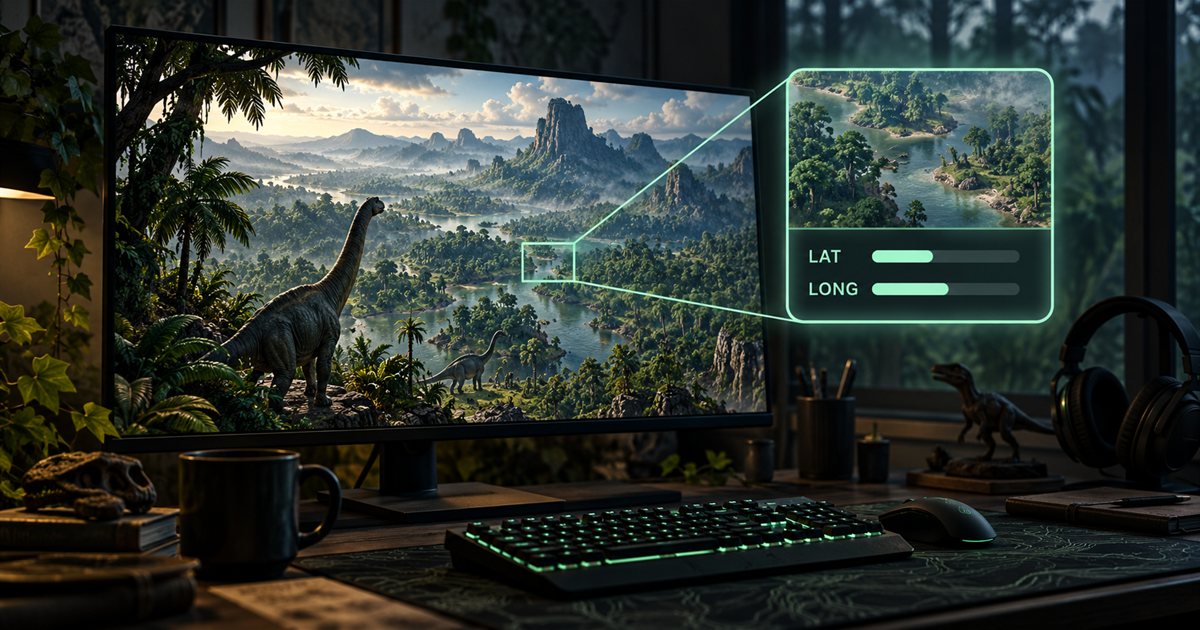
TheIsleMinimap can update your position by reading the Asset Location text that The Isle displays on screen. The useful starting point is a clear, approved reading area: include the heading, Lat and Long, choose when reading should happen, then check that a fresh reading reaches Current Position. This guide walks through that process and the checks to make if updates stop.
This guide covers Asset Location Reading in the current TheIsleMinimap app. AI-generated illustrations explain the workflow; they are conceptual artwork, not screenshots of the app, The Isle or current Gateway map data. For installation and the wider interface, start with the getting-started tutorial.
What screen reading does
Automatic reading is an optional feature that starts disabled. With your consent, it captures the approved Asset Location area locally and recognises the visible Lat and Long text. Altitude is ignored for map placement. The app checks the visible coordinates before updating your marker. Captured screen content stays on your computer.
Opening the game is not enough by itself. Asset Location must be visible and readable when the app attempts to read it. The feature does not obtain a hidden position from game memory, discover other players or turn the map into live enemy tracking. Its job is to transfer your own displayed coordinates into the companion map.
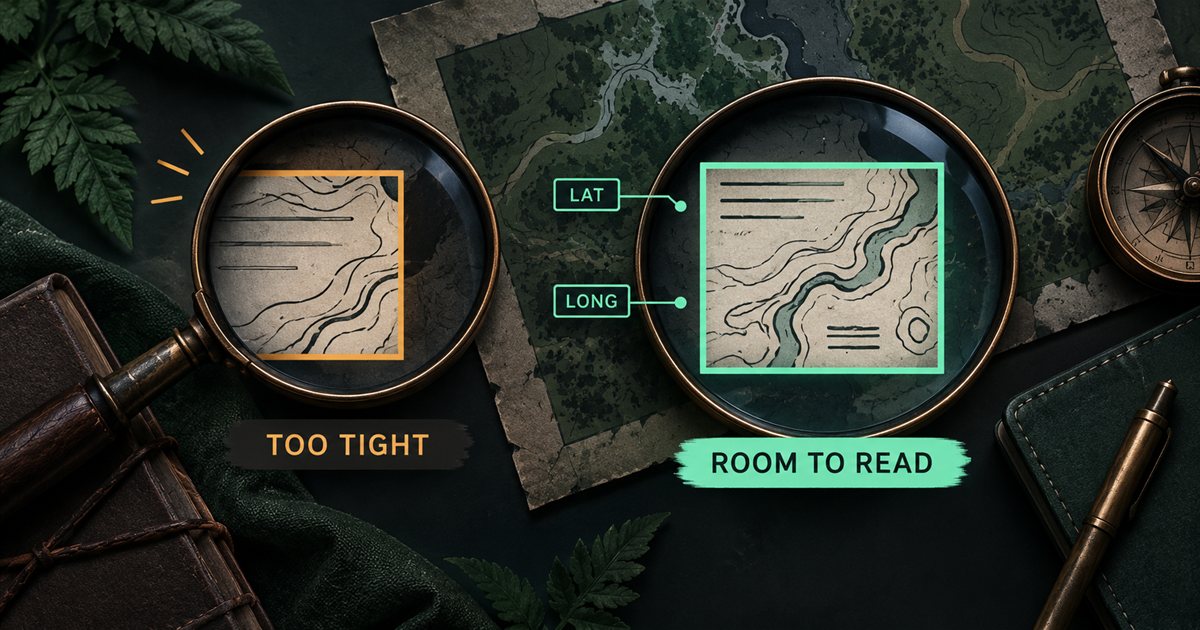
The saved reading area also matters. A small crop that cuts off a minus sign or the end of a number can be less useful than a slightly roomier selection. Aim to capture the relevant text clearly, with space around the heading and both coordinate lines, while excluding unrelated desktop content.
Get started opens after first activation and checks English OCR support when you select either screen-reading mode. If it is missing, choose Install English OCR support, approve the Windows prompt and keep the app open while it installs. Asset Location uses English labels; your Windows display language does not change. Reopen the assistant from Settings > Position Updates > Get started. Clipboard capture does not need OCR.
Set and confirm your reading area
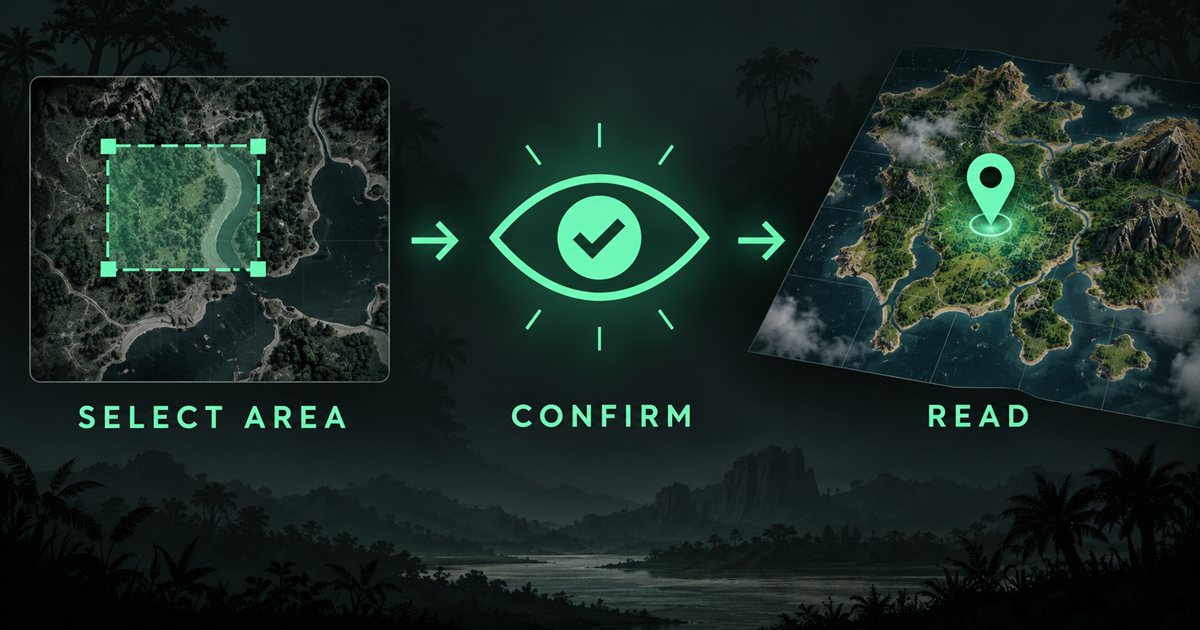
- Run The Isle in windowed or borderless fullscreen mode and make sure you can open Asset Location using your game binding (Tab by default).
- Open TheIsleMinimap settings, choose Position Updates. Use Get started for guided setup or Quick guide for short instructions.
- Use Set reading area. Review and accept the screen-reading consent when prompted if you want to use this optional feature.
- Open the game panel so Asset Location is already visible, then click Find automatically in the setup window. Keep the coordinates visible during the capture countdown.
- Review the suggested crop. Check that the heading, Lat and Long are included and that the values are not cut off.
- If the suggestion is unsuitable, use Select manually to choose the area yourself. Review that preview too.
- Choose Confirm area only when the preview is correct, then choose either continuous or key-triggered reading in Position Updates.
The setup window does not save a new area until you confirm it. If a search cannot find a reliable selection, do not approve an unrelated patch of the screen just to complete setup. Retry with the panel fully visible or select the area manually. Cancel leaves you free to return to the existing setup.
Use your normal game resolution and interface scale during setup. The app has safeguards for window and display changes, but a preview that was correct before a large layout change deserves another check. Keep the companion from covering the coordinate text while you establish the reading area.
Choose a reading mode
Choose between Read Asset Location automatically and Read Asset Location only when I press Tab. Turning one mode on switches the other off. Key-triggered reading works on its own: continuous reading does not need to be enabled. Both modes use your confirmed reading area and visible coordinates.
| Setting | When reading happens | Useful habit |
|---|---|---|
| Read Asset Location automatically | The reader checks your approved area while Asset Location is visible. | Keep the coordinate text unobstructed. |
| Key-triggered reading — fastest | Your assigned Asset Location key starts a reading request while The Isle is in the foreground. | Tab is the default. Use Change key to match your game controls, then leave the panel visible for confirmation. |
| Both reading modes off | No screen reading takes place. | Click the in-game coordinates for a clipboard update instead. |
Enabling Tab-only mode can ask you to approve an app restart and the Windows administrator permission prompt. Follow the visible prompt if you want that mode. If you decline or cancel, do not assume the setting became active: return to Position Updates and check the actual state.
Tab-only mode stops its attempt after a confirmed reading, a timeout or cancellation such as leaving the game. It does not continue taking idle screenshots and recognising text between requests. Press your assigned Asset Location key while The Isle is in the foreground. Tab is the default; Change key lets it match your game binding. It also works while holding Shift to sprint or Ctrl to crouch.
Choose the mode that fits how you use the panel. Neither option promises a fixed update rate, a particular OCR delay or a performance improvement on every computer. Your text visibility and capture conditions still determine whether a usable reading is available.
Verify a fresh position update
After setup, return to the game and expose Asset Location. If you chose key-triggered reading, press your assigned key while the game has focus. Then check Current Position and the reader status in Position Updates. Look for evidence of a new accepted reading rather than judging success only by the presence of a map marker.
A position restored from an earlier session is useful context, but it is not proof that the reader has just worked. Likewise, standing still can produce the same coordinates repeatedly. When practical, compare the displayed values and status after a small, safe movement rather than expecting a dramatic marker jump.
If fresh coordinates appear but the marker is outside your current map view, reset the map view before changing the reading area. Panning away from your marker and failing to obtain a reading are different problems. The coordinate-reading overview explains the two input methods alongside the map controls.
Troubleshoot the reader in a useful order
Start with the visible conditions, then change one thing at a time. Repeatedly toggling several settings makes it harder to tell which step helped. Leave your saved configuration intact while you check these common causes.
| What you notice | First check | Next step |
|---|---|---|
| No fresh reading | Your chosen reading mode is enabled and Asset Location is visible. | Read the current Reader Status message and preview the saved area. |
| Key mode does nothing | The game has focus and the assigned key matches your game binding. | Complete the administrator restart if requested, then press the assigned key again. |
| Reading stopped after a display change | The crop still contains the full heading and coordinate lines. | Set and confirm the area again using your normal resolution and scale. |
| A marker exists but seems old | Current Position reflects a newly accepted reading. | Expose the panel again; do not treat restored coordinates as a fresh capture. |
| Coordinates update but the map looks misplaced | The map has not simply been panned away. | Reset the map view and compare the displayed coordinates before changing anything else. |
If you used Clear area, the reader needs another approved area before it can work again. If another window or an overlay covers the text, remove that obstruction and retry. If you switch between windowed and borderless layouts or change Windows display scaling, revisit the preview rather than assuming the old crop is still appropriate.
Do not delete your Saved or configuration folders to troubleshoot recognition. If the problem persists, open a support ticket through the Account Portal with your app version, reading mode, current status message and a description of the display change or failure. Redact coordinates, squad codes and account details from any image you share.
Use clipboard capture instead
You can use TheIsleMinimap without automatic screen reading. Open The Isle's Tab panel and click Asset Location in the game to copy your coordinates. The app can receive that clipboard update and place your marker without a separate paste action inside the companion.
This is also a useful comparison when diagnosing a reader problem. If copying coordinates updates Current Position but automatic reading does not, concentrate on reader consent, mode, text visibility and the approved crop. If neither method updates, include that distinction in your support ticket instead of assuming OCR alone is responsible.
Your setup checklist
- Approve a preview that includes the full Asset Location heading, Lat and Long.
- Enable your chosen reading mode; continuous and key-triggered reading work independently.
- Match the reading key to your game binding and complete the administrator restart if requested.
- Test with the game in focus and the coordinate panel unobstructed.
- Verify a fresh accepted position, then recheck the crop after major display changes.
Once the reader is working, the Quick Access guide shows how to put reading controls within reach. If you record your sessions, also review the Streaming Privacy guide before sharing your screen.