
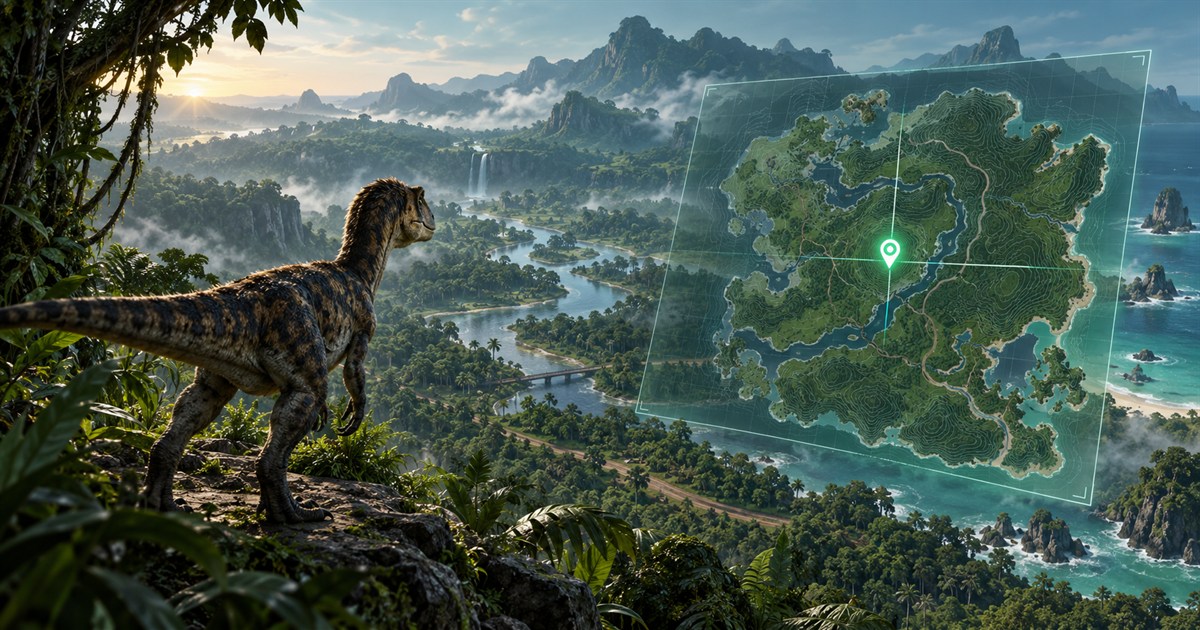
To find your location in The Isle: EVRIMA, open the in-game Tab panel and use the Asset Location coordinates shown for your dinosaur. Those coordinates can place an accurate current-position marker on the supported Gateway map. Once you know where you are, rivers, roads, coastlines, ridges and named landmarks help you hold direction between updates.
Open Tab in The Isle EVRIMA and find Asset Location. Click the displayed coordinates for a manual clipboard update, or enable optional local screen reading and select the complete visible Asset Location area once. TheIsleMinimap converts a valid reading into your Gateway position without requiring a manual paste. Update again after long travel, a chase, a river crossing or a major direction change.
Where are the coordinates in The Isle EVRIMA?
The current EVRIMA interface displays Asset Location inside the in-game Tab panel. It represents your own visible location in the coordinate format used by the supported Gateway map. It is not a public player list and it does not reveal nearby dinosaurs.
Move to cover before opening the panel. Once Tab is visible, look for the complete Asset Location entry rather than copying a single number from somewhere else on the interface. The label and all coordinate components together help the app distinguish a real position from unrelated numbers.
- Launch The Isle: EVRIMA and join a server using the supported Gateway map.
- Pause somewhere that is reasonably covered and safe enough to check the panel.
- Open the in-game Tab panel.
- Locate the Asset Location coordinate entry.
- Click the coordinates for manual capture, or show the selected panel area to the optional reader.
The same workflow can be used on compatible official and community servers. Server rules may differ, but Gateway coordinates remain the source for your own position.
How to copy Asset Location coordinates
Manual clipboard capture is the simplest method when you want direct control over each update. Open Tab and click the visible Asset Location coordinates. The game copies them to the Windows clipboard, and TheIsleMinimap recognizes a valid coordinate value automatically. You do not need to switch to the app, select an input field or paste the text.
A useful manual routine is:
- capture once before beginning a route;
- capture after crossing a river, road or major terrain boundary;
- capture after escaping a chase or taking an unexpected detour;
- capture on arrival before choosing the next destination;
- capture again if the landscape no longer matches the map.
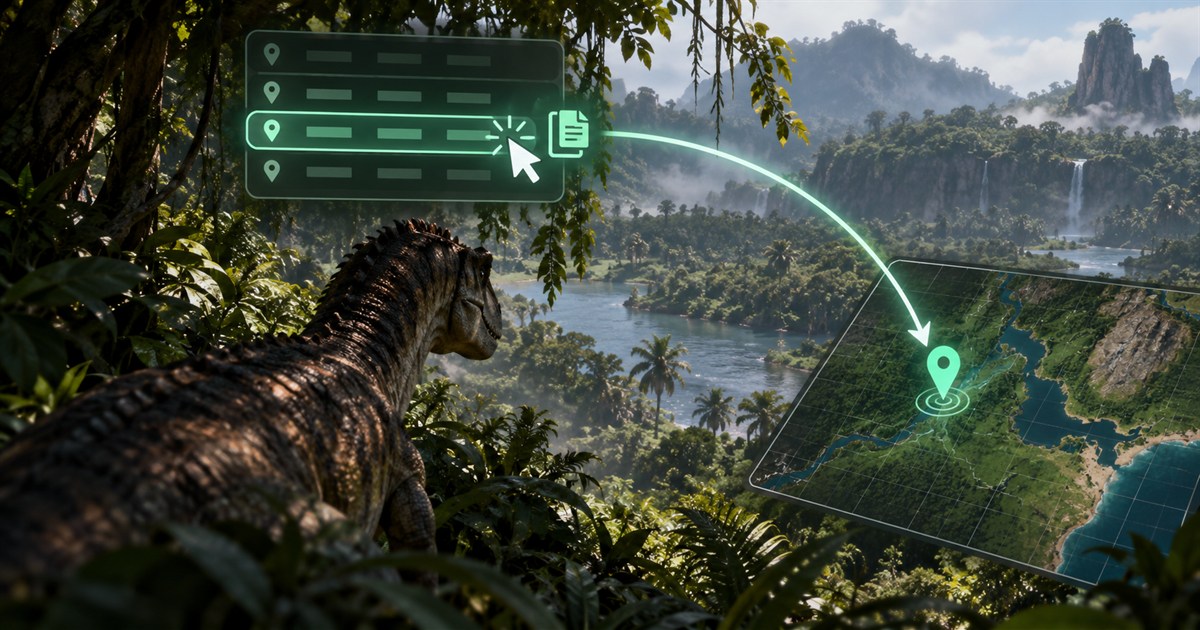
Why clicking is better than retyping coordinates
Retyping creates avoidable errors: a missing minus sign, changed separator or omitted component can send the pin to the wrong part of the map or make the value invalid. Capturing the complete value exactly as The Isle provides it keeps the workflow fast and preserves the original format.
Optional screen reading for faster Tab updates
Players who open Tab regularly can enable automatic or key-triggered screen reading in Settings > Position Updates. After accepting the explanation, select the complete visible Asset Location area once. When that panel appears in the foreground game, the app checks the visible coordinates locally before updating the marker.
The selected area follows the game window when its size, display or Windows scaling changes. Captured screen content remains on the computer and is not uploaded by the reading feature. Screen reading is off by default, and clipboard capture remains available whenever you prefer a manual action.
Follow the dedicated Asset Location and coordinate-reading setup guide for the exact controls, privacy boundaries and troubleshooting steps.
This is still update-based navigation. The marker moves when the app receives a fresh valid coordinate; it does not inspect game memory, inject code, read network traffic or silently track movement while the panel is closed.
Turn coordinates into a Gateway map position
A coordinate is most useful when it becomes a point you can compare with the landscape. After the marker moves, start with a small set of map layers instead of enabling everything at once:
- Location Names for broad orientation;
- Landmarks for recognizable structures and terrain references;
- Roads and Trails for route continuity;
- Drinking Water when water is part of the next leg;
- only the Plant or Animal filters relevant to the current diet.
The Gateway map layers guide explains the available categories. Treat mapped resources as navigation references rather than a promise that a live resource or animal will always be present in every session.
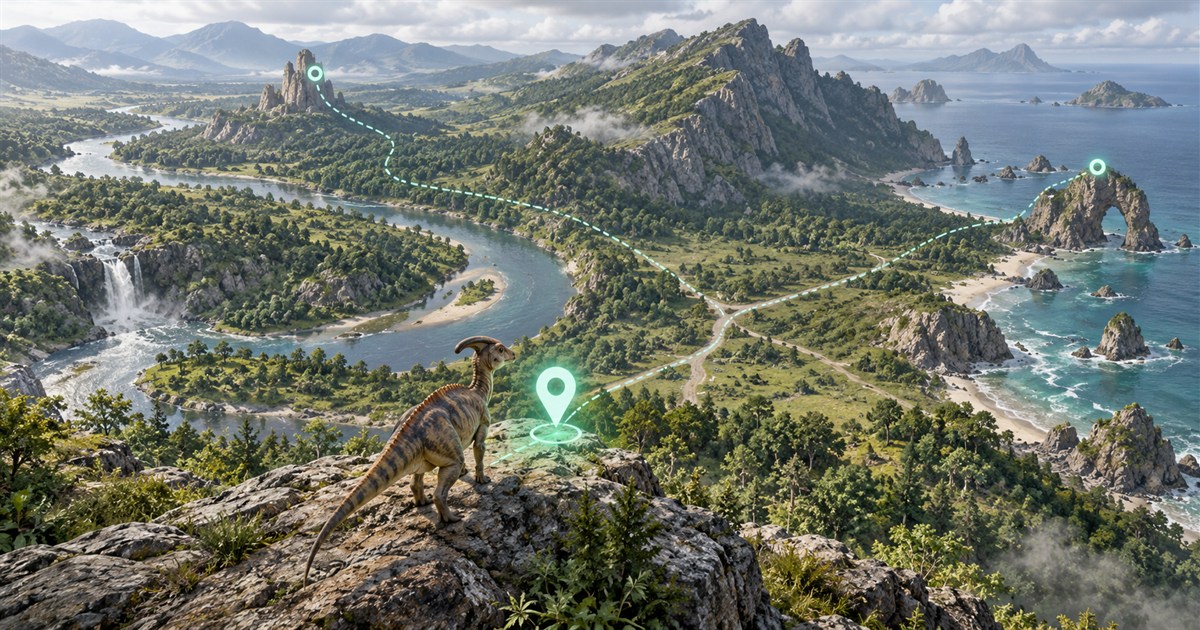
Use coordinates and landmarks together
Coordinates answer “where am I right now?” They do not replace observation. Before moving, identify one large feature and one secondary reference near the planned route. A river bend plus a road junction is more useful than a distant destination alone. A coastline plus a ridge gives you two ways to notice an incorrect heading.
Use a short navigation loop:
- Capture Asset Location and confirm the marker.
- Choose the next visible or reachable landmark.
- Move while checking the terrain, compass direction and sound around you.
- Capture again after reaching or passing the landmark.
- Correct the route early if the new marker differs from your expectation.
This approach is especially useful in dense jungle, where similar vegetation can hide gradual direction drift. The complete Gateway beginner map guide combines position updates with water, food and safer route planning.
Why is my location wrong on The Isle map?
If the marker does not update or appears wrong, avoid guessing a corrected number. Return to the original Asset Location entry and capture it again. Most problems can be narrowed down with this checklist:
- Wrong game branch or map: confirm that you are playing EVRIMA on the supported Gateway map.
- Partial copy: click the complete Asset Location value instead of selecting one coordinate component.
- Old clipboard content: click the current in-game coordinates again and check the update time in Current Position.
- Screen area is incomplete: reselect the complete visible Asset Location panel in Settings > Position Updates.
- Game is not foreground: show the panel inside the active game when using optional screen reading.
- Two readings do not match: keep the panel still and fully visible long enough for matching local readings.
- Map expectation is outdated: compare the marker with the currently supported Gateway map rather than an older branch or Legacy map.
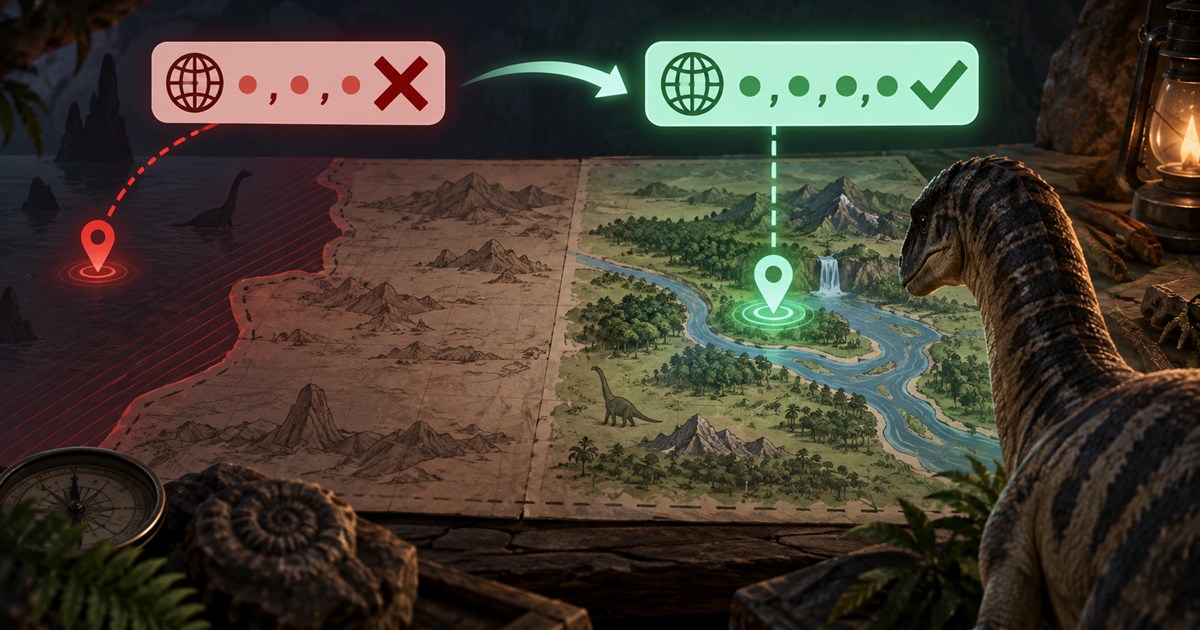
What if clipboard updates work but screen reading does not?
That usually points to the selected reading area or visibility rather than the map itself. Confirm that automatic reading is enabled, the saved area covers the complete panel, the game is in the foreground and the coordinate text is unobstructed. If the game window, display or scaling setup changed, reselect the area. Manual clipboard capture remains the quickest fallback.
What if the marker updated but I still feel lost?
Zoom out far enough to identify the surrounding region, then enable Location Names, Landmarks and either Roads or Drinking Water. Match the map against one feature you can actually see. Do not run immediately toward a far-away label; plan a short first leg and update again once you reach its landmark.
How often should you update your position?
There is no need to capture continuously. Update when a new coordinate will change a decision. Useful moments include route starts, major crossings, direction changes, arrival at objectives, long jungle travel and recovery from a pursuit. Players who naturally open Tab can use optional screen reading for quicker repeated updates; players who prefer deliberate checkpoints can click Asset Location manually.
For a private squad, each fresh captured position can update the latest shared marker while the member remains connected. This is near-real-time coordinate sharing—not hidden continuous tracking. Read the multiplayer squad map guide for the four-player workflow.
Does a coordinate minimap read the game?
TheIsleMinimap uses the Asset Location information already displayed to you. It does not read game memory, inject into The Isle or inspect network packets. Clipboard recognition and optional screen reading process your own visible coordinates locally. Private squad sharing is separate and shows only the latest positions intentionally supplied by invited squad members.
The app also cannot reveal hidden dinosaurs, show every online player or guarantee that a marked resource is currently available. It is a navigation companion built around your captured position and reference layers.
The Isle EVRIMA coordinates FAQ
How do I find my coordinates in The Isle EVRIMA?
Open the in-game Tab panel and find Asset Location. That entry contains the current coordinates used to place your dinosaur on the supported Gateway map.
How do I copy Asset Location?
Click the displayed coordinates in the Tab panel. The game copies the complete value, and TheIsleMinimap can recognize it through clipboard monitoring without a separate paste action.
Can my position update automatically?
Yes, after you explicitly enable optional local screen reading and select the visible Asset Location area. When the panel appears in the foreground game, the app can check the coordinates and update the marker.
Why are my The Isle coordinates not working?
Confirm that you are on EVRIMA Gateway, capture the complete current Asset Location value and avoid retyping it. For screen reading, verify the complete panel is selected, visible and inside the foreground game.
Does the map show my live movement?
The marker reflects the latest valid coordinate you captured. It does not read hidden movement from the game between updates.
Can I use coordinates on community servers?
Yes, when the community server uses the supported EVRIMA Gateway map and coordinate format. Server-specific settings do not change the basic capture workflow.
Keep your current marker, landmarks, water, food references and optional squad positions together in one Windows minimap.