You do not need four separate subscriptions to give a group of four TheIsleMinimap Squad access. Squad Monthly and Squad Quarterly each include one license for the purchaser and three licenses to share with friends. Each person activates their own app, then joins the private squad you want to use together.
Website invitation: gives a friend their own app license. In-app squad code: connects licensed players so they can share positions. Accepting a license does not automatically join a squad.
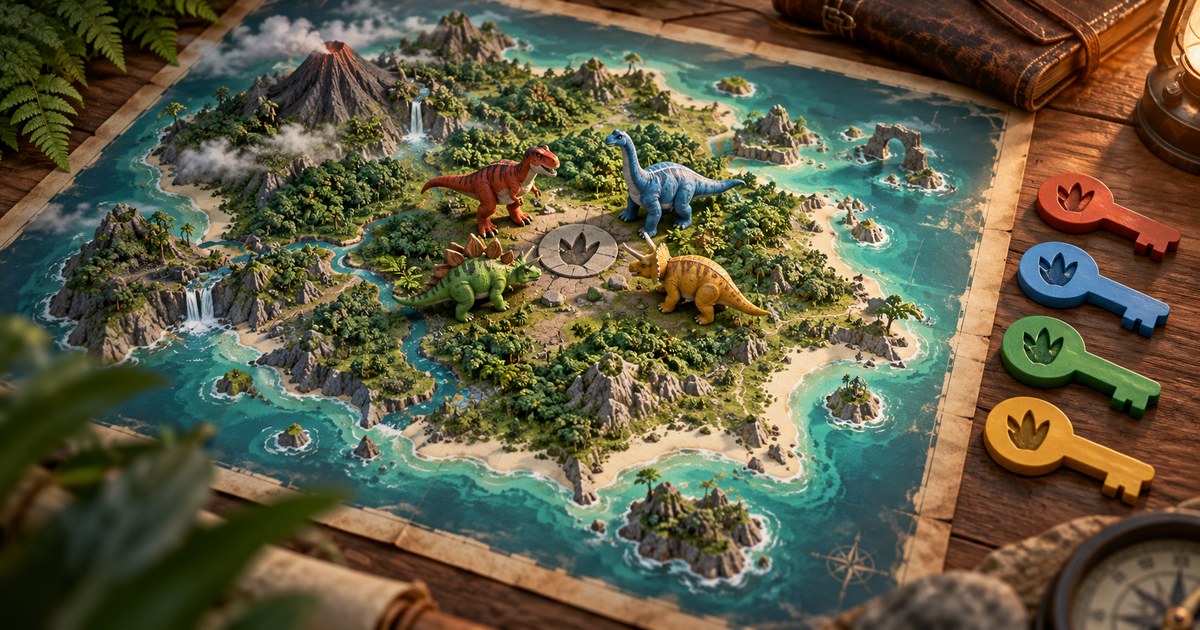
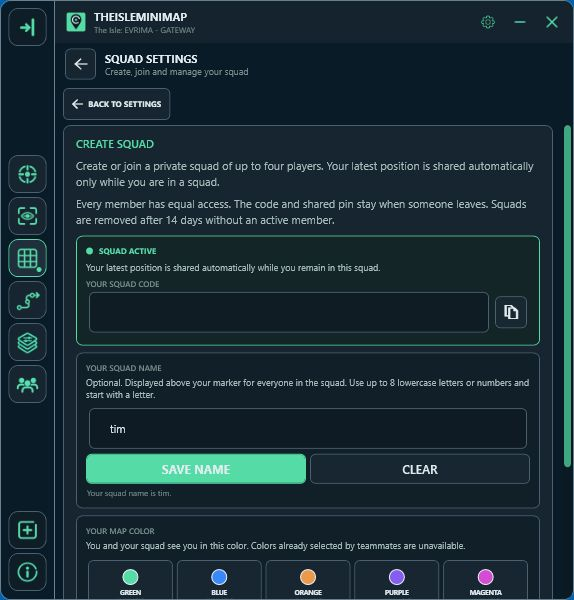
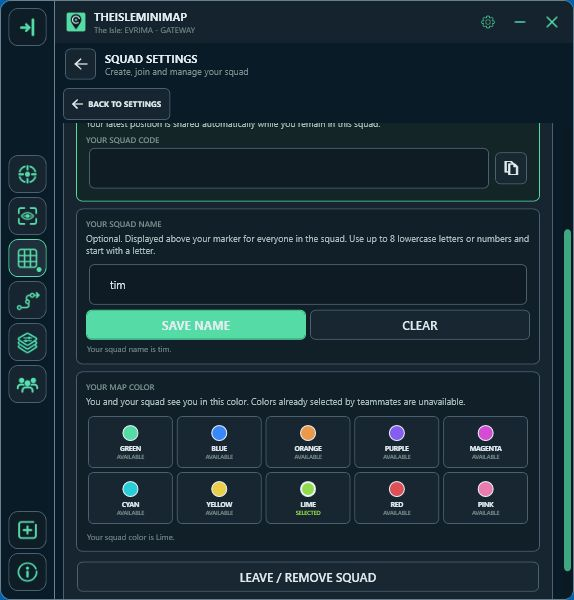
The cover is an AI-generated conceptual illustration. Its dinosaur figures and key tokens represent four participants, not actual license keys or a recommended in-game species group. Follow the rules of the server you join. The app screenshots below show the real interface with the private squad code hidden.
Four individual licenses under one subscription
Squad Monthly and Squad Quarterly both provide four Squad licenses. Monthly renews each month; Quarterly renews every three months. The difference is the billing term, not the number of friends you can invite.
The purchaser keeps their own license and manages three friend slots. Each accepted friend gets a separate key for one active installation. Sharing the purchaser's key between four PCs is not the setup: use the invitations to give each participant their own access.
This guide is for the current four-license subscription plans. Squad Lifetime is a single-license purchase. An older or individually issued Squad key should not be assumed to include three invitation slots just because its access tier is Squad.
Start with four separate website accounts
Ask each friend to create a free TheIsleMinimap account and verify their email address. They do not need to buy another plan or provide a payment method to accept your shared license.
Collect their TheIsleMinimap usernames. These are the usernames on this website, not Steam display names, Discord usernames or the short names shown above app markers. If someone signed up through Discord, ask them to check their website account details for the correct username.
The purchaser should sign into the account that owns the subscription. Open Account Portal > Licenses and look for the Squad Monthly or Squad Quarterly license-sharing section.
Invite one friend per available slot
- In Friend 1, enter your friend's TheIsleMinimap username.
- Choose Invite friend.
- Repeat for Friend 2 and Friend 3.
- Ask each friend to open their own Account Portal > Licenses page.
An invitation waiting for acceptance is not yet an activated app. Tell your friends to check the website rather than waiting for a squad marker to appear. If you typed the wrong username, cancel that pending invitation and invite the correct account.
You can invite friends later, but their licenses follow the subscription's remaining paid access. An invitation does not start a separate full month or quarter for each recipient. The Licenses page shows the shared renewal or end date.
Each friend accepts and uses their own key
On their Licenses page, the friend chooses Accept shared license. Their new key is then available in Your licenses. They can reveal it, open Download in the Account Portal and install the Windows app.
At activation, each person enters their own key. Someone who already uses a different license should follow the license-switching instructions on the website's Licenses page. Keep keys private rather than posting them in a group channel.
Existing separately owned licenses stay on the recipient's account. Accepting shared Squad access does not trade in a Solo Lifetime license. The shared license follows the bundle's access; the Solo license remains separate.
For a new installation, follow Get started to choose the app's appearance and position-update method. The full tutorial covers setup, including the optional screen-reading steps.
Now connect the apps with a private squad code
- One participant opens Settings > Squad Settings in the app and selects Create new squad.
- Copy the private squad code and send it directly to the other three participants.
- The others open Squad Settings, enter the code and choose Join squad.
- Choose distinct marker colors and optional short names so you can tell the participants apart.
The subscription purchaser does not have to create the squad. The person who creates it does not become a permanent leader: squads are leaderless, and the connected members use the shared features together.
Giving someone a website license invitation does not add them to an existing squad. Equally, sending a squad code does not give them a license. Keep those two steps separate when helping a friend through setup.
Make sure everyone supplies a fresh position
Join the same game server and use compatible in-game grouping rules for your chosen dinosaurs. Connecting the minimap does not join a game server or create an in-game pack or herd. The grouping guide covers that separate part of playing together.
Each member must update their own coordinates. Open Asset Location with the assigned game key, Tab by default, and use the configured reading mode. Alternatively, click the in-game coordinates for a clipboard update. When Asset Location is closed, the map keeps the latest supplied position.
Check the online counter and identify each person's marker, then agree on one meeting point. A right-click on the map places the squad's shared destination pin. The app shares the latest supplied positions, not every player's continuous movement or complete trail.
Understand renewals, cancellation and replacing a friend
Successful renewals extend all four licenses together. Canceling the subscription stops future renewal; access continues through its paid expiry. Check the displayed date on the Licenses page rather than treating the cancellation day as the immediate end of the group.
To replace a friend, use Remove shared license on that slot, then invite someone else. The removed shared key and its device access stop working. Any separately owned licenses on that friend's account remain theirs.
Removing someone from a license slot is different from asking them to leave a squad. Leaving a squad changes its membership, not the subscription or the website's invitation slots. When Squad access ends, the app frees the player's squad slot. Temporary connection trouble does not erase the saved squad.
Squads with no active member for 14 days are cleaned up automatically. That squad cleanup is separate from your plan's billing term.
If a friend cannot get connected
- No invitation: check that the TheIsleMinimap username is correct, your friend has confirmed their email address, and they are signed into the right account.
- Invitation still pending: the friend must accept it on their own Licenses page.
- No license key: check that acceptance completed and inspect Your licenses.
- App still shows Solo Settings: check which key is activated and follow the website's switching instructions.
- Licensed but not in the squad: enter the private squad code in the app; the website invitation alone does not join it.
- Marker is old: supply a fresh Asset Location update and check your position-update settings.
For a persistent problem, use Account Portal support and describe which step failed. Include the message shown, but keep license keys and private squad codes out of public screenshots.
Four-license plans: quick answers
Do my friends need their own subscription?
No. Your current Monthly or Quarterly plan includes three friend licenses alongside your own.
Can four people activate one key?
No. Each participant uses their own accepted license key, with one active installation per key.
Does accepting a license put us on the same game server?
No. Join the same game server separately, then connect the apps using a private squad code.
Will a friend lose Solo Lifetime when shared access ends?
No. Separately owned Solo Lifetime access stays on their account. They can follow the Licenses page instructions to switch back to its key.