
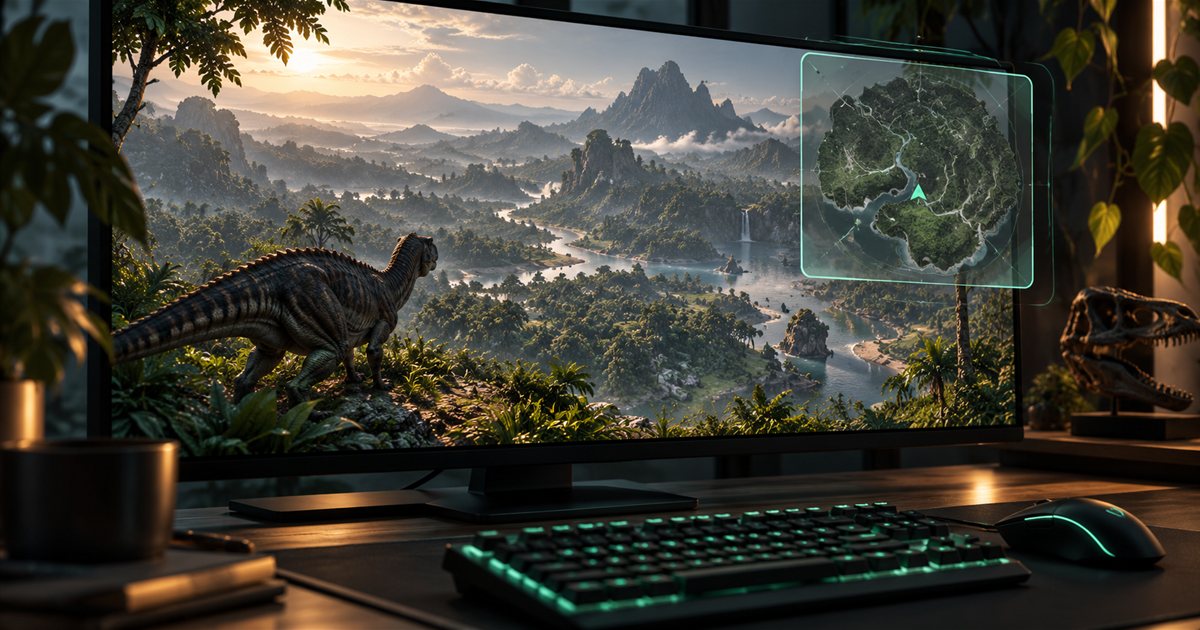
A useful minimap should be readable when you glance at it and behave predictably when your mouse passes over it. TheIsleMinimap gives you separate controls for app size, opacity and mouse interaction. Adjust them one at a time: choose the space you need, balance the view of the game behind it, then decide where clicks should go.
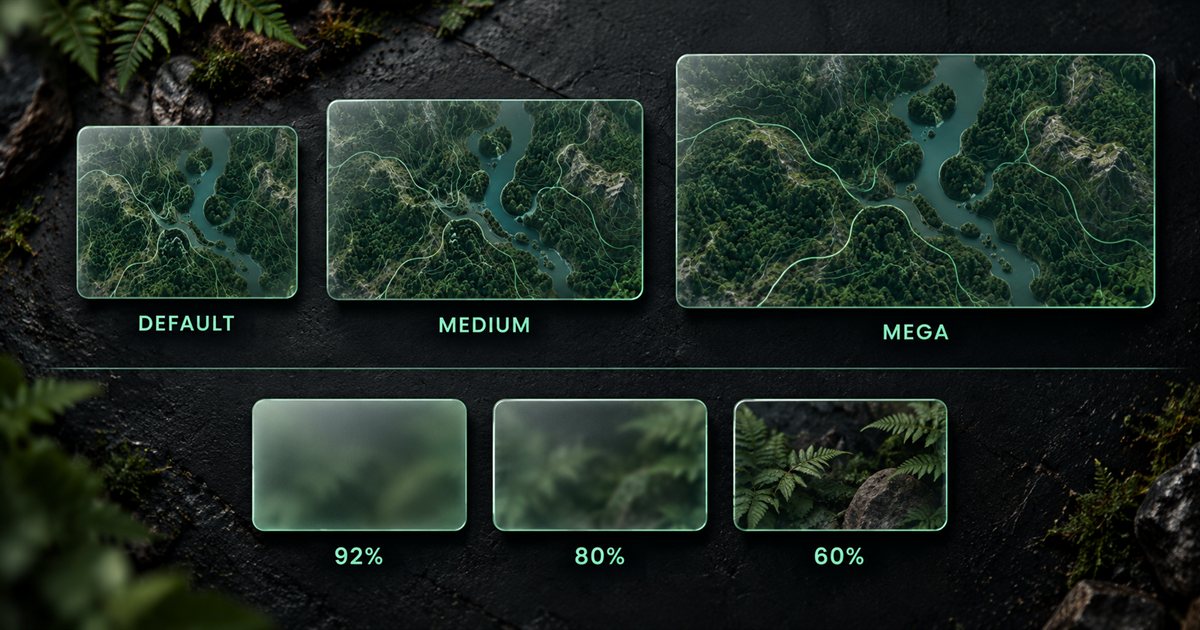
This guide covers TheIsleMinimap 1.7.1. Its three AI-generated illustrations explain size, transparency and input behaviour; they are conceptual artwork, not screenshots of the app or The Isle. Start with the full tutorial if you still need to install the companion or obtain your first position update.
Start with a supported window mode
Use The Isle in windowed or borderless fullscreen mode for the supported overlay workflow. Establish your normal game resolution and Windows display scaling before judging the companion's size. The same choice can occupy a different proportion of your screen on a smaller display or at a different scaling setting.
Open the companion's settings and choose App Settings. The Appearance section contains App Size and App Opacity. Farther down, Gaming & Startup contains Interaction while gaming and its Allow mouse interaction switch. These controls solve different problems, so avoid changing all three at once.
First make the app easy to read while it is selected. Then return focus to The Isle and check how the overlay behaves during ordinary play. An active companion window accepting clicks is expected; click-through matters when the companion is inactive and the game has focus.
Choose your app size
App Size offers Default, Medium and Mega. Default is the compact choice, Medium provides more room, and Mega gives the largest map and settings workspace. Changing size applies immediately and can reposition the window near the bottom-left of the available game display area.
| Choice | Good starting use | Check before keeping it |
|---|---|---|
| Default | A compact view during normal play. | Can you recognise your marker and read the controls comfortably? |
| Medium | More space to inspect the map or settings. | Does the larger window overlap an important part of your game interface? |
| Mega | A larger workspace for studying layers or adjusting settings. | Does it fit your display without obscuring too much of the scene? |
There is no single best choice for every monitor. Begin with Default and move up only if the map or settings feel cramped. The app accounts for the available work area, so do not treat a size label as a promise of identical physical dimensions on every display.
App size and map zoom are separate. A larger app gives the map more screen space; zoom changes the view inside that map. If you have zoomed in and lost your bearings, use Reset map view rather than assuming the window itself needs to be bigger. Likewise, a map panned away from your marker is not evidence of a failed coordinate reading.
Set a readable opacity
App Opacity offers Default at 92%, 80% and 60%. A lower value makes the complete app window more see-through, allowing more of the game behind it to show. It also reduces the visual strength of the companion's text and controls.
Compare the choices against more than one background. A setting that looks comfortable over a dark forest can be harder to read over bright water or a pale sky. Check Current Position, map labels and any buttons you actually use while the game is visible behind the window.
Start at 92%, try 80%, then consider 60% if the map remains clear enough for you. Keep whichever balance makes the companion easiest to use. There is no need to select the lowest value simply because the overlay can become more transparent.
Opacity does not change click-through. A faint window can still receive clicks when interaction is enabled, and a more opaque inactive window can pass them through when interaction is disabled. Opacity also does not hide coordinates or squad codes from a recording. Use the separate Streaming Privacy guide when preparing to share your screen.
Understand click-through and mouse interaction
With Allow mouse interaction off, the inactive overlay is click-through while you use the game. Clicks over its area pass through instead of selecting map controls. To change settings or type in the companion, use Alt+Tab to select TheIsleMinimap deliberately.
With Allow mouse interaction on, clicks over the minimap go to the app while the game has focus. This lets you use map controls without first activating the companion for every mouse action. It also means a click intended for the game can reach the map if the pointer is over the overlay.
Mouse interaction and keyboard focus are not the same thing. The companion can receive those mouse clicks without taking keyboard focus away from the game. If a text box will not accept typing, use Alt+Tab to select the app before entering a squad code or another value. Do not assume a successful mouse click has also changed where keyboard input goes.
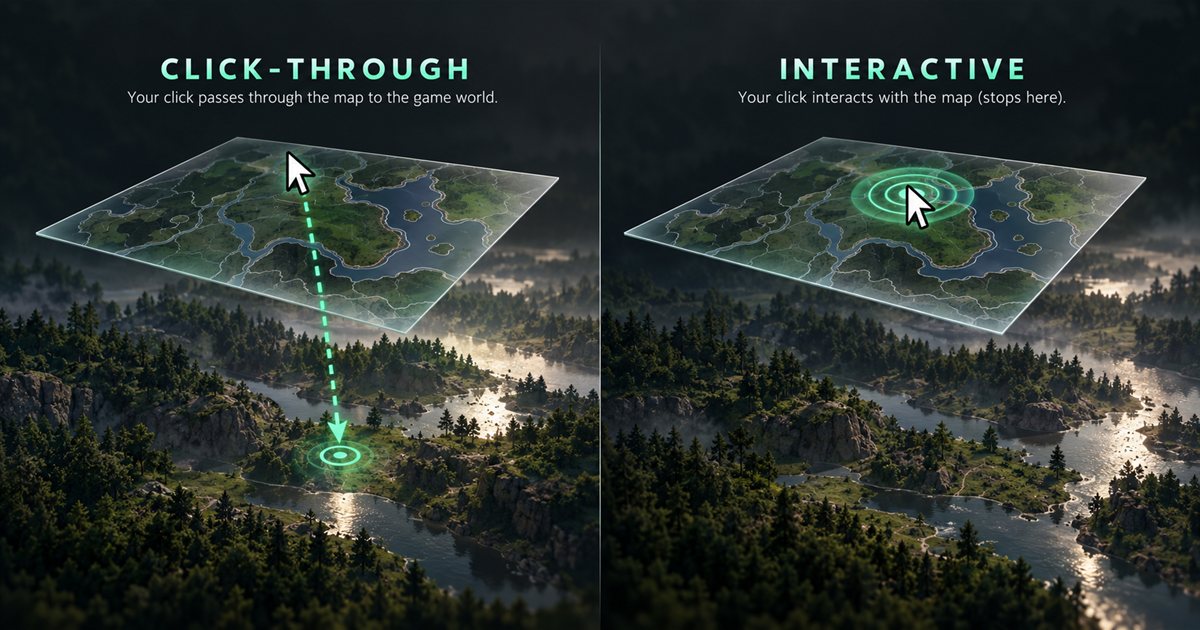
If you usually want the game to receive all clicks, leave interaction off and activate the companion when needed. If you regularly pan the map or press sidebar buttons during play, try interaction on in a calm moment and learn which screen area now belongs to the app.
Test your layout before depending on it
- Choose an app size while the companion is selected.
- Set opacity and check small text against both bright and dark game backgrounds.
- Choose whether mouse interaction should stay enabled during play.
- Return to The Isle and move the pointer over the overlay to verify the expected click destination.
- Select the companion with Alt+Tab and confirm that you can type when needed.
- Return to the game, obtain a fresh position update and check that your marker is easy to recognise.
Keep the overlay away from Asset Location text used by the screen reader. A comfortable visual layout should also leave the approved reading area unobstructed. After a major change to game resolution or interface scaling, review the crop using the screen-reading setup guide.
Once the layout works, Quick Access can provide Cycle app size, Cycle opacity and Mouse interaction actions. These use the same existing choices; adding a button does not automatically select a new setting. The sidebar guide explains selection and ordering.
Troubleshoot clicks and typing
| Symptom | First check | Useful next step |
|---|---|---|
| The overlay seems to block game clicks. | Allow mouse interaction is enabled, or the companion itself is active. | Disable interaction if you want pass-through, then return focus to the game. |
| Sidebar buttons do not react while gaming. | The inactive overlay may be click-through. | Select the companion with Alt+Tab, or enable interaction if that suits your workflow. |
| A text field will not accept typing. | The game may still have keyboard focus. | Use Alt+Tab to select the companion before typing. |
| The map is difficult to read. | Opacity may be too low for the background. | Restore Default opacity and compare sizes before changing other settings. |
| The window moved after a size change. | Size changes can reposition it within the available display area. | Review the resulting layout before returning to play. |
Do not delete settings folders or reinstall just to change these preferences. If behaviour still differs from the expected result, open an Account Portal support ticket. Include your app version, game window mode, selected size and opacity, interaction state and which application had focus. Redact coordinates and squad codes from any attached image.
Your setup checklist
Use windowed or borderless fullscreen play, choose a comfortable size, verify opacity against varied backgrounds and test the mouse destination with the game focused. Remember Alt+Tab for typing. Revisit the layout when your display arrangement changes, and use the features overview for the companion's other controls.