
A second monitor gives the minimap its own space while The Isle stays on your main screen. The important distinction is that moving the app changes where you view the map; it does not change where the coordinates come from.
Extend your Windows desktop, put The Isle on its intended screen, choose the app size and then move the minimap. Return focus to the game and test one fresh Asset Location reading before settling into play.
The cover is an AI-generated concept illustration of a two-monitor arrangement, not a screenshot of The Isle or TheIsleMinimap. The setup image further down is from the actual app.
Use an extended desktop
Connect both screens, then open Windows Settings > System > Display. Use Identify to match the numbered screens to the ones on your desk. Arrange the display rectangles to match their physical positions so the pointer crosses the expected edge.
Press Windows + P and choose Extend when you want different windows on the two screens. Duplicate repeats the same desktop, so it does not provide a separate space for the companion. Microsoft's multiple-monitor instructions explain these display choices.
Set your normal resolution and scaling before arranging the app. Choose The Isle's intended monitor and use the supported windowed or borderless fullscreen workflow. Make sure the game is comfortable and readable on that display before adjusting the minimap.
Choose the app size, then move it
- Open The Isle on the display where you will play and give it focus once.
- Open TheIsleMinimap > Settings > App Settings and choose your preferred App Size.
- Drag the app using an empty part of its header onto the other monitor. Avoid dragging from the settings, minimize or close buttons.
- Choose an opacity that keeps the map and Current Position text readable.
- Return to The Isle and test the arrangement during ordinary play.
The app can reposition when you change its size or when it detects that the game has moved to another monitor. Establish those choices first; if it moves back toward the game screen, drag it to your preferred place again afterward. There is no separate “second-monitor position reader” to enable.
App size and map zoom are different. A larger app provides more space for the interface. Map zoom changes the area shown within it. On a smaller secondary screen, start with Default size and judge whether you can read the labels before choosing Medium or Mega. The size, opacity and interaction guide explains those controls in more detail.
The game still supplies the position
For screen reading, use Settings > Position Updates. Choose Read Asset Location only when I press Tab for a reading triggered by your configured game key, or Read Asset Location automatically for readings while the text remains visible. These are alternative modes.
Tab is the default. If you changed the key that opens your dinosaur's panel in The Isle, set the matching reading key in the app. Return to the game, open the panel so its Asset Location heading and Lat/Long values are visible, and check that Current Position receives a fresh update.
A second screen does not provide coordinates while Asset Location is hidden. When you close the panel and keep walking, the marker remains at the last confirmed reading until you supply another one. Clipboard updates remain an alternative: click Asset Location in the game to copy fresh coordinates.
Screen reading pauses while you interact with the minimap or another application. Return focus to The Isle before testing the reading key. This prevents a click in the app from being mistaken for a request to read the game. You do not need to switch the reading mode off and on just because you used the second screen.
Select the game's Asset Location area
The approved reading area belongs to the game window. It is not the map window on your other monitor. In Position Updates, use the reading-area setup with The Isle's Asset Location panel already open. Choose Find automatically, review the proposed area and confirm that the heading, Lat and Long fit with room for changing digits. Alt is not needed for map positioning.
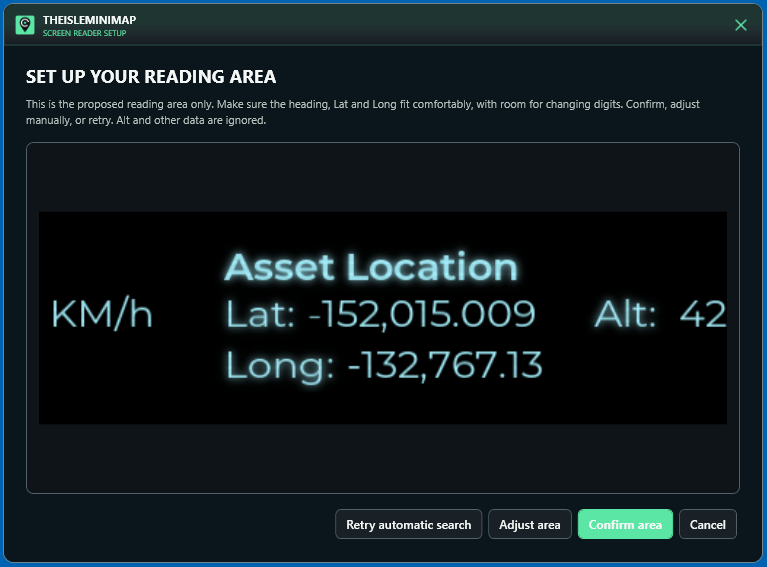
Keep other windows away from that text during a test. If the app reports missing English screen-reading support, follow its install prompt; your Windows display language does not need to change. The English OCR support guide covers that separate requirement.
After moving the game or changing scaling
The app adapts a saved area to the current game window and display settings, but you should still test a fresh reading after changing the game's monitor, resolution, window mode or interface layout. If the result stops working, review the proposed area and select it again if the text no longer fits.
Simply dragging the minimap to the second screen does not normally require selecting the game's reading area again. Check the game text first rather than repeatedly replacing a working crop. After unplugging a monitor, confirm both windows are visible and restore the intended display arrangement before testing again.
Common second-monitor problems
| What you notice | What to check first |
|---|---|
| The marker stays still while walking | Open Asset Location for a new reading; panel-closed movement supplies no new text. |
| The reading key does nothing after clicking the map | Return focus to The Isle, then use the configured key. |
| The app returns to the game screen | Finish the size or game-monitor change, then reposition the app. |
| The text is too small or faint | Adjust App Size and App Opacity separately from map zoom. |
| Reading fails after changing resolution | Open the coordinate panel and review the saved reading area. |
If it still behaves differently, include both displays' resolutions and scaling, the game window mode, reading mode and app version in an Account Portal support ticket. Explain which window had focus when the reading was missed. That is more useful than a screenshot of a stationary map alone.
Quick answers
Do I need another license for another monitor?
No. Two monitors connected to the same active Windows installation are not a second app installation.
Can I close Asset Location and get continuous updates?
No. Screen reading needs the visible coordinate text. Open it for another reading or supply a fresh clipboard copy.
Does the minimap need keyboard focus to read?
No. The Isle needs focus for the screen-reading workflow. Select the companion when adjusting its settings, then return to the game.