
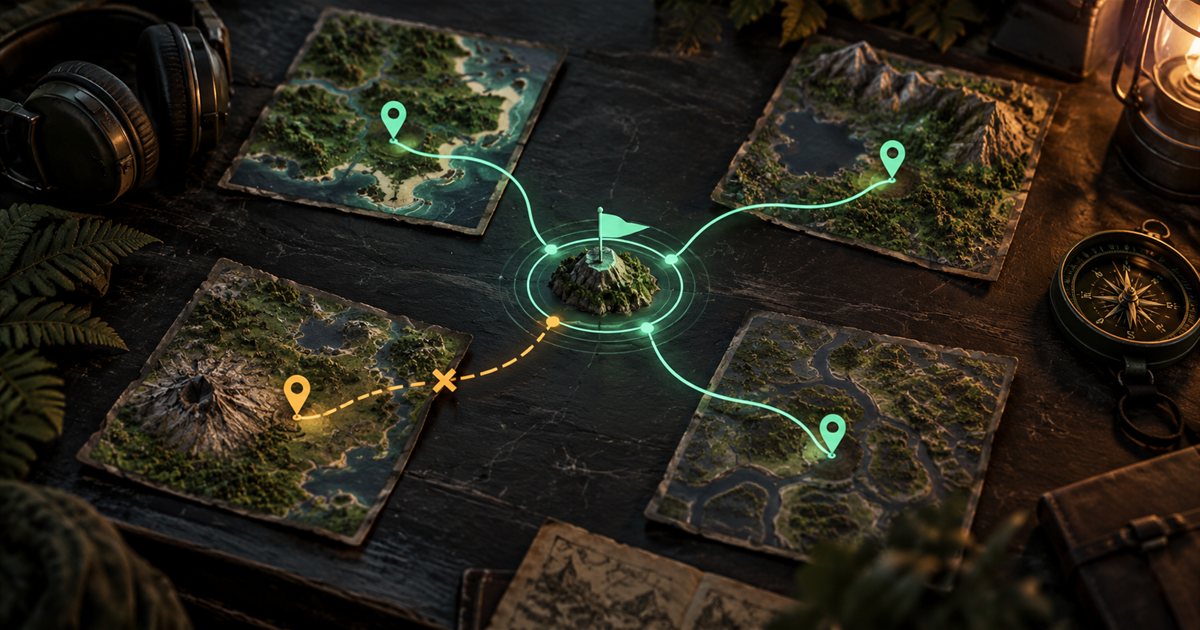
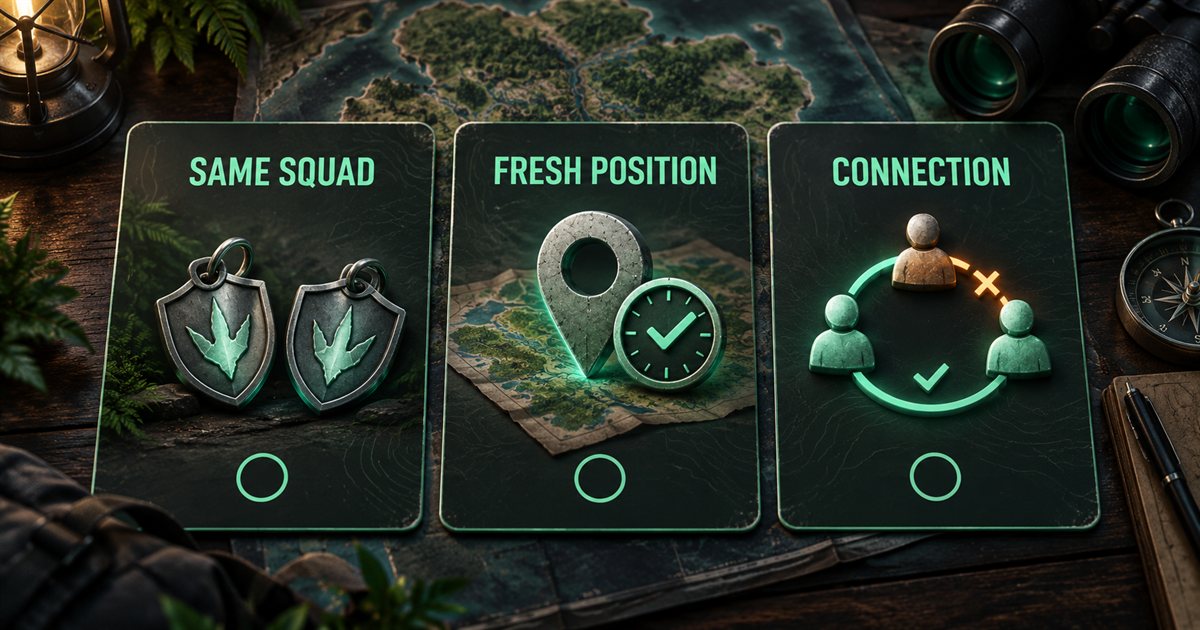
If a friend is missing from your minimap or their marker no longer matches the game, check three separate things: membership in the same private squad, a fresh local coordinate reading and a working sharing connection. Looking at those in order is more useful than repeatedly creating new squads or reinstalling the app.
This guide covers the current leaderless squad system in TheIsleMinimap. Its three AI-generated illustrations explain the troubleshooting process; they are conceptual artwork, not app screenshots, real squad codes or current Gateway map data. For initial setup, use the private squads overview and complete tutorial.
Check membership and access first
Private squads support up to four members, with equal access for every member. Every member needs their own active Squad-enabled license. Monthly and Quarterly include four separate licenses: the subscriber invites three friends from Account Portal > Licenses, and each friend accepts there and activates their own key. The in-app squad code does not grant a license, and joining The Isle's in-game group does not automatically join a TheIsleMinimap private squad.
Open Squad Settings in the companion. One person can use Create New Squad, then copy the private code for the others. Friends enter that code under Join a Friend's Squad and select Join Squad. Pasting the code alone does not complete the join operation.
Compare the active squad code privately on both sides. If everyone independently created a new squad, they have different groups even if they are standing together in The Isle. Use one agreed squad and the current shared code rather than creating another group every time a marker is missing.
A message that a squad is full or its code does not exist does not identify which of those causes applies. Ask a connected member to resend the current code privately. Squads are removed after 14 days without an active member; a code from a removed squad will not work.
Also confirm that you intend to meet on the same game server and supported map. The companion's private code is not a game-server password or an automatic check that everybody is playing in the same session. A marker on a shared reference map does not prove that its owner is beside you in your server.
Verify a fresh local position on each computer
The companion shares positions supplied by each member's screen reader or clipboard updates. It does not read hidden player movement from the server. Before diagnosing transport, ask the affected player to check whether their own Current Position updates correctly.
- Open The Isle's Tab panel and expose Asset Location.
- If using the screen reader, check its mode and obtain an accepted reading. In key-triggered mode, press your assigned Asset Location key (Tab by default) while the game is in the foreground.
- Alternatively, click Asset Location in the game to copy coordinates for clipboard capture.
- Check Current Position and its capture feedback in the companion.
- After a small, safe movement, obtain another reading and compare the displayed values.
A marker restored from a previous session is a last known position, not a new capture. The app waits for a fresh reading before sharing that restored position. If your own display says it is waiting for a fresh reading, solve that first rather than expecting other members to receive a new location.
There is a second important distinction: the sharing connection can keep delivering your latest known coordinates even if you have not captured another in-game reading. A recently received marker or an online member count therefore does not guarantee that those coordinates reflect your latest movement. Check the affected player's local capture information as well.
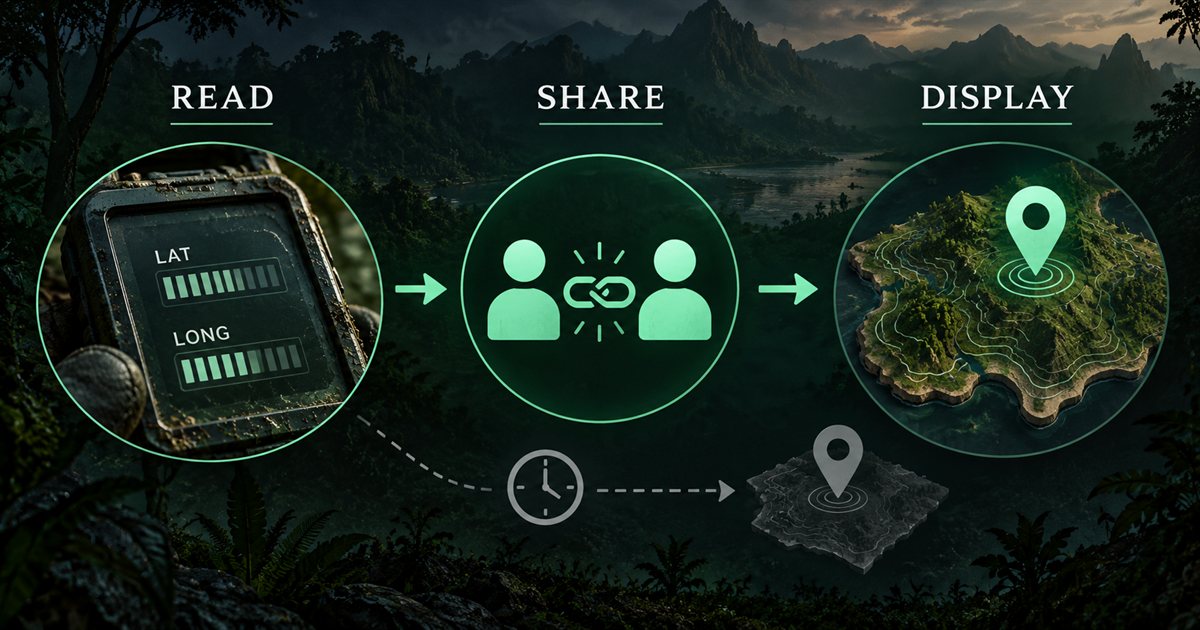
If clipboard capture works but automatic reading does not, review the approved reading area, visible text and selected mode using the screen-reading guide. A squad problem can originate in one member's local reading setup even when everybody else is receiving updates normally.
Read connection and sharing status together
Squad Settings shows a sharing status message. The member counter also distinguishes states such as No Squad, Connecting, Reconnecting and Online. Open the in-app Service status view when you need to compare local map readiness, coordinate capture, internet reachability and squad connection information.
| What you see | What to check | Useful response |
|---|---|---|
| No active squad | Whether you completed creation or joining. | Join the agreed current squad using its private code. |
| Connecting or Reconnecting | Internet and squad status on the affected computer. | Allow automatic reconnection to work and read the accompanying message. |
| Your position updates are interrupted | Outgoing sharing on that computer. | Do not assume receiving a friend's marker proves your own upload succeeded. |
| Connected, but your location is old | Fresh local Asset Location capture. | Obtain a new reading before diagnosing map display. |
| Squad no longer exists or access ended | The current squad code and your access. | Follow the message and create or join a valid squad as appropriate. |
Incoming and outgoing sharing can fail separately. Seeing a teammate or a shared pin arrive does not prove that your own position has been delivered successfully. If the app reports interrupted position updates, keep that information in your diagnosis rather than dismissing it because part of the squad view still works.
A browser opening the public website status page is useful context, but it does not establish that every connection on your computer is healthy. Check the app's own status and the affected member's results. If a wider service problem is reported, repeated squad recreation is unlikely to help.
Work through a missing or outdated friend
Use this short sequence with one affected teammate before changing the whole group's setup. Keep the invitation code private and exchange status descriptions rather than account credentials.
- Confirm that both companions are in the same current private squad.
- Confirm active Squad-enabled access and that the group is within the four-member limit.
- Have the affected teammate obtain a fresh local coordinate reading.
- Read their outgoing-sharing status and your own connection status.
- Reset or pan the map view to inspect the relevant location; the marker may be outside your current view or overlap another marker.
- Use the teammate's chosen color and optional name to identify the marker.
Older received markers fade and eventually disappear when position delivery stops. The online member count uses freshness information, so it is not a permanent list of everybody who has ever joined. A lower count is a reason to check the affected connection; it does not by itself prove that someone left the squad.
Colors already claimed by teammates are unavailable. Choose a different available color instead of treating an unavailable choice as a connection failure. Optional names help distinguish nearby markers, but setting a name does not produce a new coordinate reading.
Troubleshoot the shared destination pin
The squad has one shared destination pin. Right-click inside the map to place it after creating or joining a squad. If a pin already exists, right-click the red pin itself to remove it before choosing a replacement location.
Right-clicking somewhere else while a pin already exists does not automatically move it. Read the status message rather than repeatedly clicking different destinations. A shared pin is a chosen destination, not another member's live position and not a calculated route.
If a right-click reaches the game instead of the companion, select TheIsleMinimap with Alt+Tab or review Allow mouse interaction. The overlay setup guide explains click-through. Do not change invitation codes to solve a mouse-focus problem.
Pin visibility and member visibility are related through sharing but remain different evidence. A visible pin does not guarantee a fresh reading from every player, and it does not mean the complete movement trail is shared. Local movement history stays on each member's computer.
Avoid unnecessary resets
Give automatic reconnection time to respond to a temporary interruption and follow the displayed error. Do not repeatedly leave, create and rejoin squads before checking the basics. Leaving removes only your own position and membership. The others keep the squad and shared pin, even if its creator leaves. When Squad access ends, that member’s slot is freed automatically. Temporary connection problems keep the saved squad.
Do not delete configuration folders, remove activation or reinstall as a first response to a missing marker. Do not disable security protections merely to see whether sharing starts. These actions can introduce unrelated problems and make the original symptom harder to investigate.
If your code fields are blurred, Streaming Privacy may be enabled. Copy actions still work, and position sharing continues; the blur does not disconnect you. Review the privacy guide before sharing screenshots or pasting a code into another application.
Prepare a useful support ticket
If the problem persists, open an Account Portal support ticket. Include the app version on both affected computers, whether creation or joining succeeded, the exact visible status, whether local coordinates update and whether the problem affects one direction or everyone.
Describe what changed before the failure, such as a new reading setup, lost connection or removed squad. If support asks for diagnostics, the app offers optional local logging categories; enable only the relevant categories requested and review material before attaching it. Redact coordinates, invitation codes, license keys and personal details. A precise description of the failed stage is more useful than a public screenshot containing private data.