
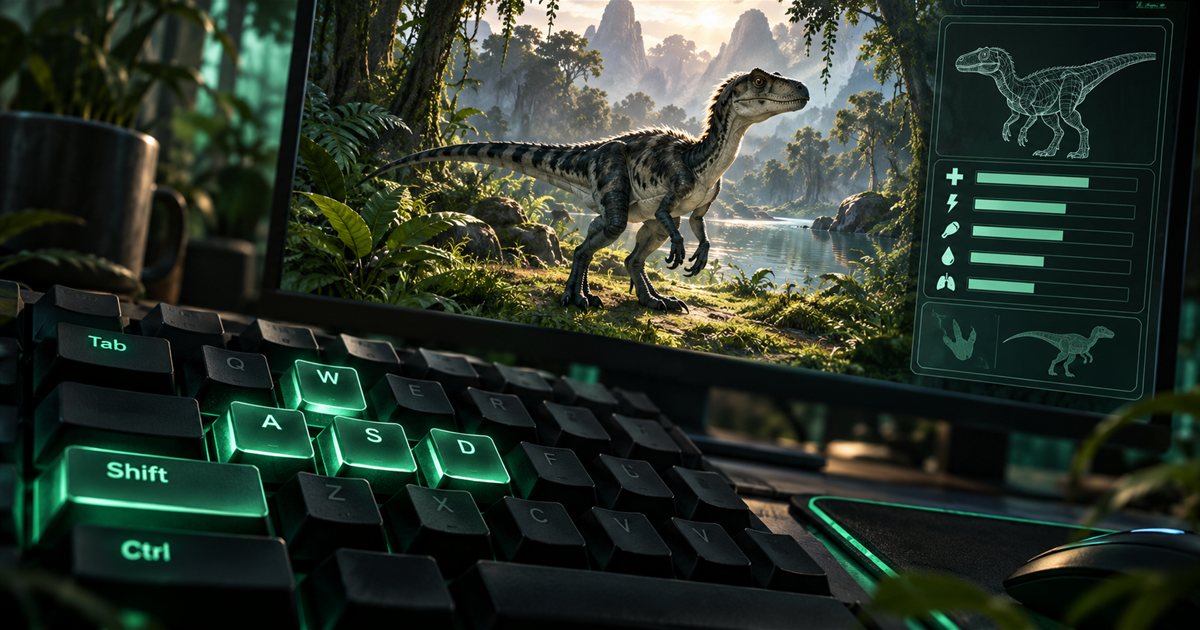
Learn The Isle EVRIMA controls in small groups: movement, survival actions, your dinosaur's abilities and the information panel. Before memorising a chart, check the bindings in your own game. A changed key, a species-specific action or an open chat box can explain why an instruction does not behave as expected.
Check movement, sprint, crouch or stance, interaction, scent, rest and the character panel. Tab normally opens the panel containing Asset Location. Change one binding at a time, apply it and test the action with The Isle focused before changing anything else.
This is a keyboard guide for EVRIMA. The three AI-generated illustrations are conceptual teaching artwork, not screenshots of the game or its settings. The examples below are starting points; your current control menu and dinosaur's available actions take priority over an older video or a saved personal layout.
Essential The Isle EVRIMA controls to check first
Open the game's settings and find the control bindings. Read the action names as well as the assigned keys. Keep a small reference of the actions you actually need instead of trying to learn every attack and modifier before you can comfortably move through the forest.
| Action | Keyboard starting point | What to practise |
|---|---|---|
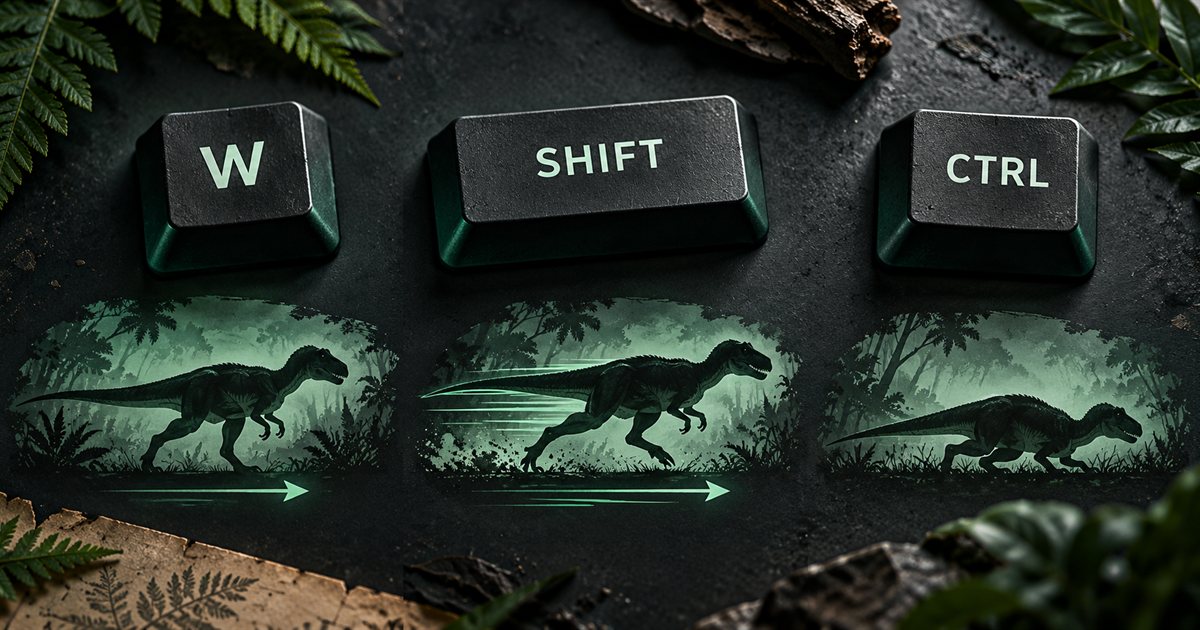
| Move and turn | W, A, S and D in a typical keyboard layout | Walk, change direction and stop without holding sprint throughout. |
| Sprint | Shift in the usual layout | Check the stamina cost before planning a long journey. |
| Crouch or species stance | Ctrl can have a different role for different dinosaurs | Watch the animal's response; do not assume every species crouches. |
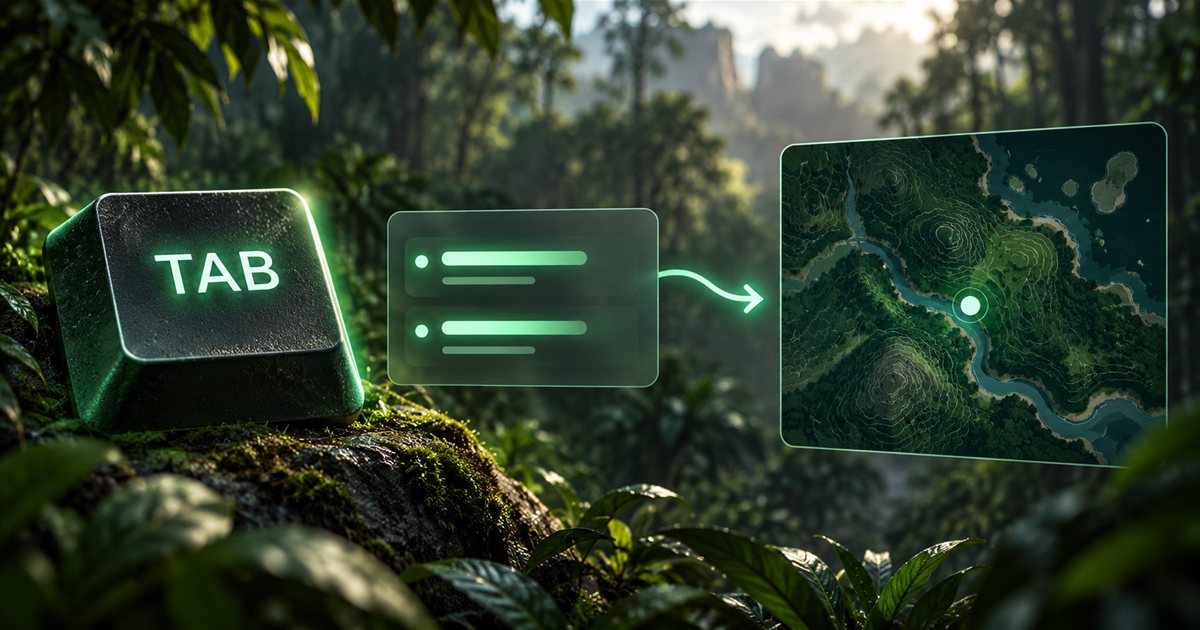
| Character information | Tab in the standard panel workflow | Find Asset Location and return to the game view. |
| Interact, scent and rest | Check each action in your current bindings | Learn whether the relevant action needs a tap, a hold or an available target. |
| Attacks and special abilities | Check your species guide and current controls | Separate ordinary attacks from holds, combinations and directional actions. |
Sprinting is useful when the situation calls for it, but it should not become the only speed you know. Walk a short route, stop, turn and repeat it with sprint. Our stamina guide explains how to plan movement around the energy available rather than a universal sprint timer.
How to change keybinds without losing track of your layout
Choose an action in the game's control settings, assign the key you want and use the available apply or save control. A comfortable binding should be easy to reach without interfering with the actions you use at the same time. Moving an information panel onto an attack key, for example, can make a simple location check awkward.
- Note the original binding before changing it.
- Change one action and check whether that key is assigned elsewhere.
- Apply the change using the game's current controls.
- Return to a suitable quiet situation and try the action once by itself.
- Test any normal combination, such as movement with sprint, separately.
- After restarting the game later, check that the intended binding remains saved.
If the result is confusing, restore that single binding before making a second change. Resetting the entire layout makes it harder to tell which adjustment helped and can remove choices you wanted to keep. Keyboard layouts also differ: use the actual key shown by your game rather than assuming a diagram of another player's keyboard matches yours.
Why species-specific controls matter
The same button can perform a different action when you change dinosaurs. Land movement, swimming, flight and defensive stances are not interchangeable. Learn a new species near terrain where you can observe its response without immediately depending on an unfamiliar ability to survive.
For a concrete official example, the developer's 0.21.720 announcement describes Ctrl as the Kentrosaurus defensive-stance toggle and also records a change to the spearfishing default key. See the official The Isle announcements. That is why a generic crouch label or an old fishing tutorial should not be treated as a complete control reference for every species.
Use the dedicated Kentrosaurus, Pteranodon or Deinosuchus guide when those abilities are relevant. Learn what happens on press and release, and distinguish a charged action from a normal tap.
Using the Tab menu to find Asset Location
In the usual EVRIMA layout, Tab opens the in-game information panel containing Asset Location. Find the full entry with Lat and Long. Opening that panel gives you information; it does not pause the multiplayer world, so check your immediate surroundings before spending time reading it.
With TheIsleMinimap running, clicking the visible Asset Location coordinates supplies a manual clipboard update. The companion recognises a valid coordinate value without requiring you to paste it into a form. Optional local screen reading is another way to obtain an update while the selected coordinate area is visible.
For the published companion's setup, follow the screen-reading guide and coordinate guide. A game keybind and an app reading mode are separate settings. If your panel uses a different key, do not assume that changing the game binding also changes how your installed companion detects a reading request. Manual coordinate copying remains an alternative.
What to check when a key does not respond
First identify which application should receive the input. Click back into The Isle, close chat or any binding-assignment field, release held keys and test the action alone. If typing appears in chat instead of controlling the animal, changing the action's key is unlikely to address the immediate focus problem.
Next check the action's requirements. Does your species have that ability? Is the relevant target available? Are you trying a tap where the action expects a hold? Compare the visible prompt with your control menu before repeatedly pressing several buttons together.
Keep game input problems separate from minimap updates. If Tab opens the game panel but your marker stays unchanged, the key reached the game. Check the companion's reading mode, selected reading area and whether fresh Lat and Long are visible. If you have not moved, an unchanged position can also be the correct result.
When asking for help, include the game branch, species, action, assigned key and whether it worked alone. For a companion issue, include the app version and reading mode. Avoid publishing your coordinates or private squad code in a screenshot.
A short practice routine before a longer journey
Walk a small loop, sprint briefly, test your species' crouch or stance, and return to a stop. Open the information panel, find Asset Location, obtain a fresh map update and close the panel. Then inspect the controls for interaction, scent and rest. This gives you a manageable sequence to repeat when learning a new species.
Once that feels comfortable, plan a short journey using a visible landmark. The Gateway beginner guide connects location, water and food into a first route. You can learn advanced combat combinations after the ordinary movement and information controls feel familiar.
EVRIMA controls questions
Does Ctrl always crouch?
No. Its role can depend on the species and your bindings; Kentrosaurus defensive stance is one official example.
Does opening Tab update my position continuously?
The companion needs a fresh valid coordinate copy or an accepted screen reading. It does not keep reading hidden coordinates after the panel closes.
Should I copy a complete keybind layout from a video?
Use it as a starting point, check its branch and date, and test each change in your current game. Your own reachable keys and saved bindings matter more than matching another keyboard exactly.